Is Windows Troubleshooter Enough? Why Built-In Tools Fail
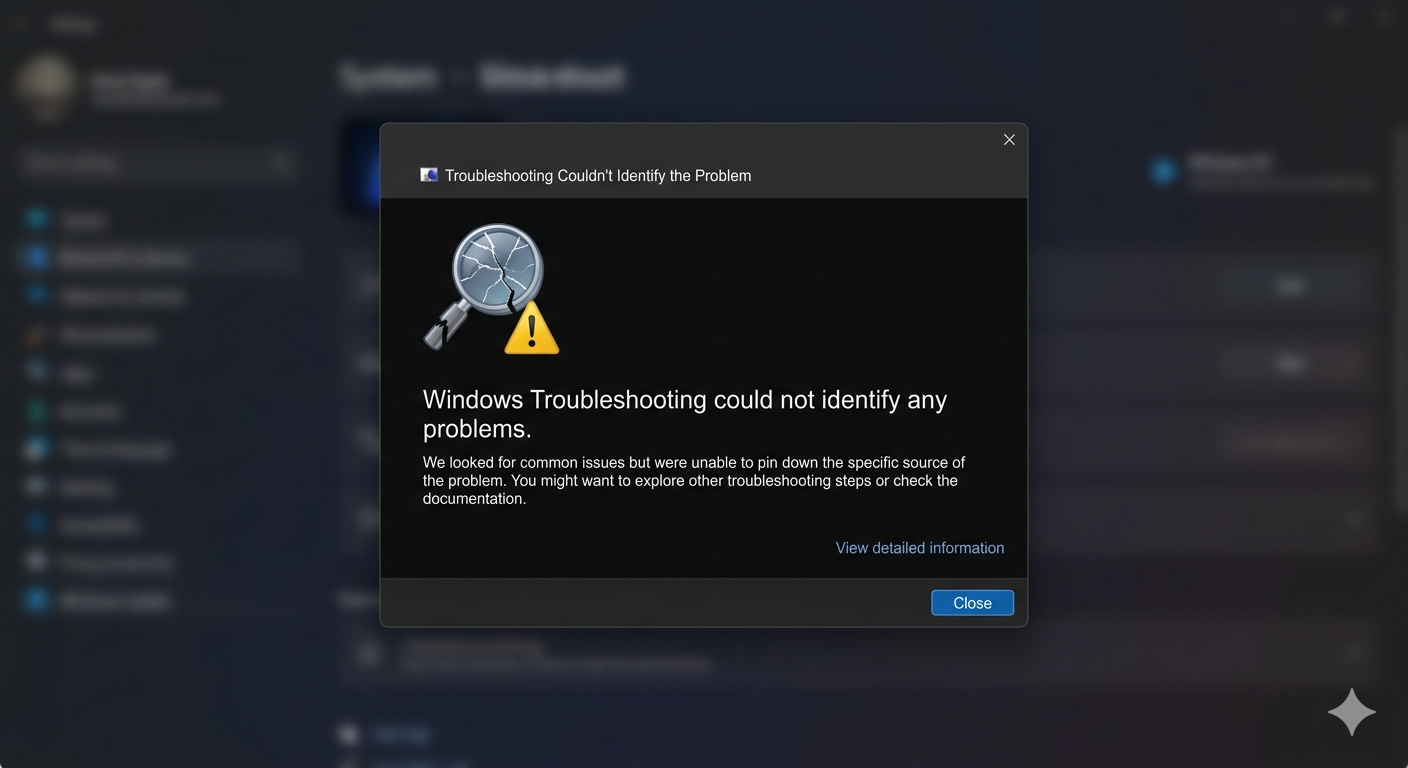
It's a scenario every Windows user knows intimately: Your WiFi drops, your audio stops working, or Windows Update freezes. You do the logical thing—you right-click the icon and select "Troubleshoot problems."
A progress bar spins for several minutes. It checks registry keys, restarts services, and finally presents you with the inevitable conclusion: "Troubleshooting couldn't identify the problem."
Why do Microsoft's built-in troubleshooters fail so often? And what is the alternative when you actually need to get your PC working again?
Why the Windows Troubleshooter Fails
The Windows Troubleshooter is not "broken"—it is just extremely limited in scope. Here is why it rarely fixes complex problems:
1. It Uses a Pre-Defined Checklist
The built-in troubleshooters are essentially static scripts. For example, the Network Troubleshooter checks if your adapter is enabled, attempts to release/renew your IP address, and resets the adapter. If the problem is caused by a third-party VPN conflict or an outdated chipset driver, the script simply doesn't know to check for that. It hits the end of its checklist and gives up.
2. It Cannot "See" Third-Party Applications
Windows Troubleshooters are blind to the ecosystem outside of core Windows components. If your audio isn't working because a specific application (like Zoom or OBS) has seized exclusive control of the audio device, the Windows Troubleshooter will report that the audio device itself is "working properly." It cannot diagnose inter-app conflicts.
3. It Lacks Context
If you are getting a specific error code in a specific application, the Troubleshooter cannot factor that in. It runs the same generic scan regardless of whether you are experiencing a total network failure or just high latency in one specific game.
The Cost of Generic Troubleshooting
When the built-in tools fail, users are forced to become their own IT department. You copy the error code, open a browser, and start searching.
This leads to the dreaded "Google-and-Guess" loop. You find a forum post from 2021 that sounds similar to your problem. You run a random Command Prompt script suggested by a user named TechGuy99. Sometimes it works. Sometimes it breaks your system further.
The real cost is your time and focus. A 30-minute troubleshooting session completely destroys your productivity momentum.
The Ultimate Solution: Vision AI Troubleshooting
The future of OS support isn't static scripts; it's dynamic, intelligent analysis. This is why we built FixPilot.
FixPilot approaches troubleshooting the way a human IT expert would, but at machine speed:
- It sees what you see: Using multimodal Vision AI, FixPilot literally looks at your screen. It reads the specific error message, sees the frozen application, and understands the context of the failure.
- It analyzes the whole system: It doesn't just check a pre-defined list. It cross-references the visual error with your current running processes, event logs, and driver states.
- It guides you visually: Instead of executing hidden scripts, FixPilot overlays a step-by-step guide on your screen, highlighting exactly where to click to resolve the issue permanently.
Conclusion
The Windows Troubleshooter is a fine first step for the most basic, generic issues. But when you encounter a real problem that affects your workflow, relying on built-in scripts will leave you frustrated.
You need a tool that understands your system dynamically. If you are tired of the "couldn't identify the problem" message, FixPilot is the ultimate solution—diagnosing and fixing your Windows PC errors in real-time with Vision AI.
Tired of dealing with this issue?
Stop wasting your cognitive energy Googling and trying unreliable hacks. FixPilot is the ultimate solution—diagnosing and fixing your Windows PC errors in real-time with Vision AI.
Verified Safe Setup • 84MB Installer • Windows 10/11