Fix "Your Connection is Not Private" Error in Chrome and Edge
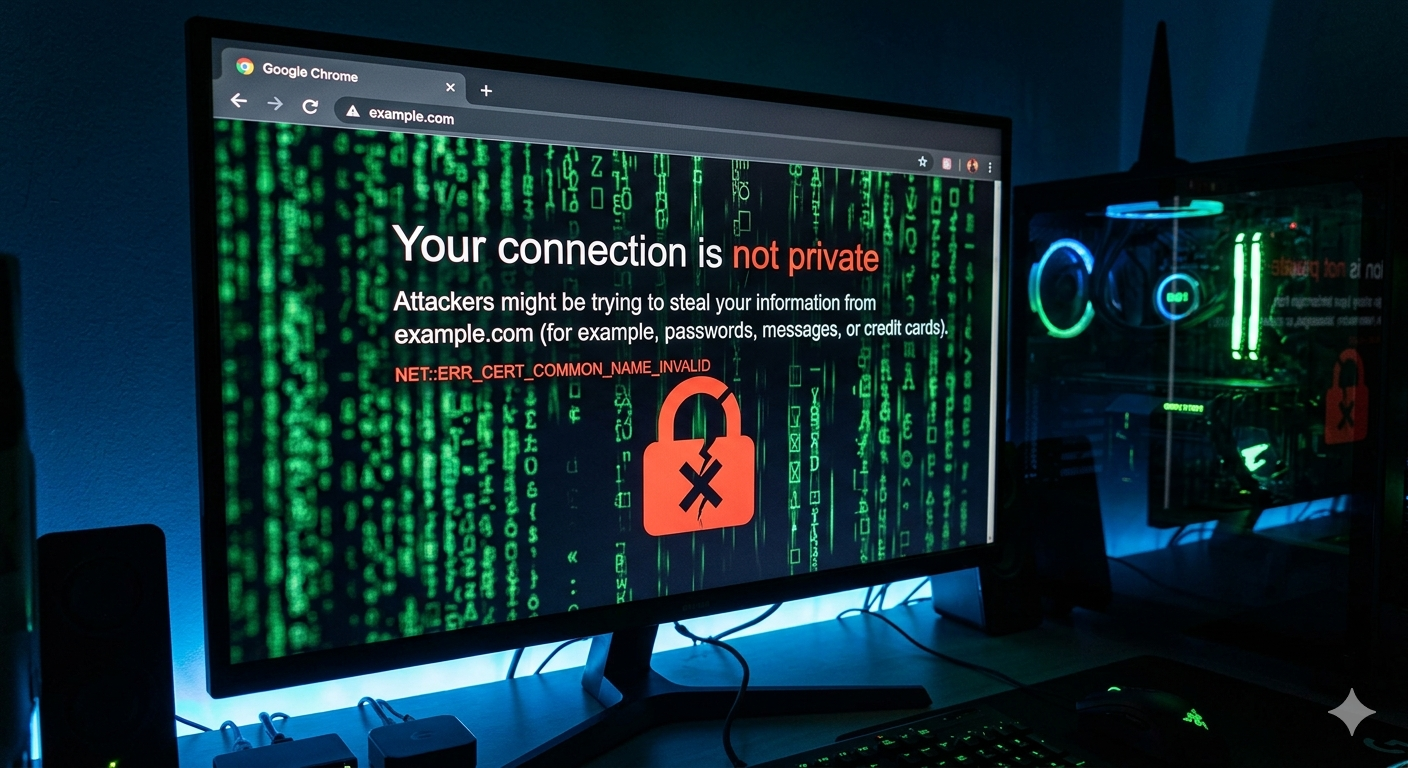
You type a website URL, hit Enter, and instead of the page loading, your screen turns red or grey with a massive warning sign:
"Your connection is not private. Attackers might be trying to steal your information."
The error code usually reads NET::ERR_CERT_AUTHORITY_INVALID, NET::ERR_CERT_DATE_INVALID, or ERR_CERT_COMMON_NAME_INVALID.
This error is terrifying by design. It stops you in your tracks to prevent you from entering passwords or credit card information on an insecure connection. However, 90% of the time, you are not actually under attack. The error is caused by a misconfiguration on your own PC or network.
Here is the complete guide to fixing this error so you can get back to browsing.
What Causes the "Connection Not Private" Error?
When you visit a secure website (HTTPS), your browser requests the site's SSL certificate to verify its identity. The error occurs when your browser cannot validate that certificate.
This happens for a few distinct reasons:
- Your computer's internal clock is wrong.
- A third-party Antivirus or VPN is intercepting your connection.
- Your browser's SSL cache is corrupted.
- You are on a public WiFi network that requires a login.
- The website genuinely has an expired or broken SSL certificate (in which case, the problem is not your PC).
Fix 1: Check Your Computer's Date and Time
This is the #1 cause of this error. SSL certificates have strict start and expiration dates. If your PC thinks it is 2018, or if the timezone is wildly off, every single certificate on the internet will appear invalid.
- Right-click the Time and Date in your Windows taskbar.
- Select Adjust date and time.
- Toggle Set time automatically to Off, wait 5 seconds, then toggle it back to On.
- Click the Sync now button under "Synchronize your clock".
- Refresh the webpage.
Fix 2: Disable Your Antivirus "SSL/HTTPS Scanning"
Many modern antivirus programs (like Avast, Bitdefender, or Kaspersky) use a feature called "HTTPS Scanning" or "Web Shield." They intercept your secure connection, scan the traffic for malware, and then re-encrypt it using their own local certificate.
If your browser doesn't recognize the antivirus's local certificate, it throws the privacy error.
To fix this:
- Open your Antivirus software.
- Go to Settings or Preferences.
- Look for a setting called HTTPS Scanning, Web Shield, Safe Browsing, or SSL Scanning.
- Temporarily disable this feature.
- Refresh the webpage. If the error is gone, you have found the culprit.
Fix 3: Clear the SSL State in Windows
Windows caches SSL certificates to speed up connections. If this cache becomes corrupted, it will reject perfectly valid certificates.
- Press Win + S, type
Internet Options, and press Enter. - Go to the Content tab.
- Click the Clear SSL state button.
- You should see a message saying "The SSL cache was successfully cleared."
- Click OK, restart your browser, and try the website again.
Fix 4: Try Incognito Mode (Bypass Extensions)
Browser extensions can interfere with SSL validation.
- Press Ctrl + Shift + N (Chrome) or Ctrl + Shift + P (Edge/Firefox) to open a private browsing window.
- Try visiting the website.
- If it loads perfectly in Incognito mode, one of your browser extensions is causing the error. Go to your extension manager and disable them one by one to find the offender.
Fix 5: Log in to the Public WiFi Network
If you are at a coffee shop, airport, or hotel, public WiFi networks often use a "Captive Portal." They intercept your first web request and redirect you to a login or terms-of-service page.
Because the network is hijacking your connection to redirect you, your browser flags it as an attack.
To fix this:
- Open a new tab and go to a non-secure, plain HTTP website (like
http://neverssl.com). - This will force the WiFi network's login page to appear.
- Accept the terms or log in.
- Go back to your original website and refresh.
Fix 6: Change Your DNS Servers
Sometimes, your Internet Service Provider's DNS servers route you to outdated or incorrect IP addresses for websites, causing a certificate mismatch.
Switching to a reliable public DNS (like Google or Cloudflare) fixes this instantly:
- Press Win + R, type
ncpa.cpl, and press Enter. - Right-click your active network adapter (WiFi or Ethernet) and select Properties.
- Double-click Internet Protocol Version 4 (TCP/IPv4).
- Select Use the following DNS server addresses:
- Preferred:
8.8.8.8 - Alternate:
8.8.4.4
- Preferred:
- Click OK and refresh the page.
The Problem with Guessing Network Errors
When you are locked out of a website you need to access, manually testing your antivirus, flushing your SSL state, and changing your DNS settings is exhausting. And if the website actually has a compromised certificate, bypassing the warning manually puts your data at severe risk.
You shouldn't have to be a cybersecurity expert just to read an article or buy a product.
The Ultimate Diagnostic Solution
This is where FixPilot changes the game.
Instead of guessing which of the 6 fixes above applies to you, FixPilot gives you the exact answer instantly. When you hit a connection error, press Ctrl+Shift+X.
FixPilot's Vision AI:
- Reads the exact error code from your browser screen.
- Analyzes your system's clock synchronization, active VPNs, and antivirus shields.
- Checks the DNS routing.
- Overlays a step-by-step visual guide showing you the exact, single fix required for your specific situation.
If you are tired of mysterious browser errors interrupting your work, FixPilot is the ultimate solution—diagnosing and fixing your PC errors in real-time with Vision AI.
Tired of dealing with this issue?
Stop wasting your cognitive energy Googling and trying unreliable hacks. FixPilot is the ultimate solution—diagnosing and fixing your Windows PC errors in real-time with Vision AI.
Verified Safe Setup • 84MB Installer • Windows 10/11