WiFi Connected But No Internet on Windows — 7 Proven Fixes
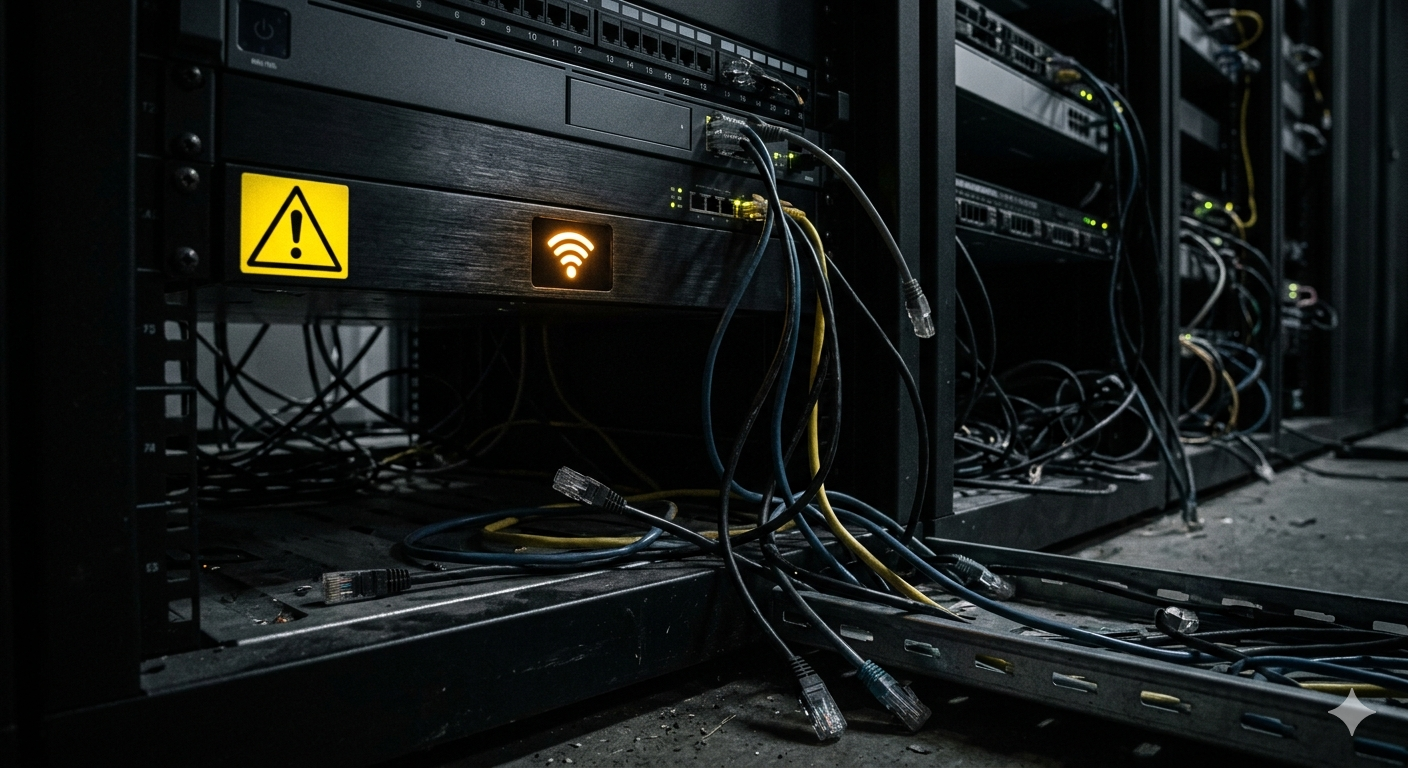
You see the WiFi icon in the taskbar, it says Connected, but nothing works — no browser, no apps, no internet. Or maybe it shows "No Internet, Secured" with that yellow warning triangle. This is one of the most common and frustrating Windows networking problems.
The good news: it almost always has a quick fix. Here are 7 proven solutions, ordered from simplest to most technical.
Why Does WiFi Say "Connected" But Have No Internet?
This happens because Windows successfully connects to your router's local network, but cannot reach the internet beyond it. The problem could be at multiple layers:
- DNS server issues (most common)
- IP address conflict or DHCP failure
- Corrupted network adapter driver
- Windows network stack corruption
- Router or ISP issue (not your PC's fault)
- Third-party VPN or firewall blocking traffic
- Winsock catalog corruption
Fix 1: Restart Your Router (Do This First)
Before touching Windows settings, always rule out the router:
- Unplug your router's power cable
- Wait 30 full seconds (this clears the router's internal state)
- Plug it back in and wait 2 minutes for it to fully reconnect to your ISP
- Test your connection
If another device on the same WiFi works fine, the problem is definitely in Windows. If nothing can connect, it's your router or ISP.
Fix 2: Flush DNS Cache and Reset IP
The #1 software cause of "connected but no internet" is a stale DNS cache. Fix it with these commands:
Open Command Prompt as Administrator (right-click Start → Windows Terminal (Admin)) and run:
ipconfig /flushdns
ipconfig /release
ipconfig /renew
netsh winsock reset
netsh int ip reset
After running all commands, restart your PC. This alone fixes the problem for the majority of users.
Fix 3: Change Your DNS Server
If your ISP's DNS servers are down or slow, nothing resolves correctly. Switch to a reliable public DNS:
- Press Win + R → type
ncpa.cpl→ press Enter - Right-click your WiFi adapter → Properties
- Double-click Internet Protocol Version 4 (TCP/IPv4)
- Select Use the following DNS server addresses:
- Preferred:
8.8.8.8(Google) - Alternate:
8.8.4.4(Google) - OR use
1.1.1.1and1.0.0.1(Cloudflare — faster)
- Preferred:
- Click OK and test
Fix 4: Disable IPv6 Temporarily
IPv6 conflicts cause connectivity issues on many home routers.
- Go to ncpa.cpl (same as Fix 3)
- Right-click WiFi adapter → Properties
- Uncheck the box next to Internet Protocol Version 6 (TCP/IPv6)
- Click OK and reconnect
Fix 5: Update or Reinstall the Network Adapter Driver
A corrupt WiFi driver causes all sorts of connectivity issues.
- Press Win + X → Device Manager
- Expand Network Adapters
- Right-click your WiFi adapter → Update driver → Search automatically
- If no update is found, right-click → Uninstall device (check "Delete driver software" box)
- Restart PC — Windows will automatically reinstall the driver
Fix 6: Run the Windows Network Troubleshooter
Windows has a built-in tool that can auto-detect and fix common issues:
- Go to Settings → System → Troubleshoot → Other troubleshooters
- Find Internet Connections → click Run
- Also run Network Adapter troubleshooter below it
- Follow the on-screen recommendations
This won't always fix everything but it's fast and sometimes catches simple configuration errors.
Fix 7: Check for VPN, Firewall, or Security Software Conflicts
Third-party VPNs, firewalls, and security suites (Avast, Norton, Kaspersky) sometimes incorrectly block traffic after a Windows update.
- Temporarily disable your VPN if you have one running
- Temporarily turn off your third-party antivirus/firewall
- Test if the internet works
- If yes, add the correct exception rule in your security software or contact its support
Advanced Fix: Reset the Entire Network Stack
If nothing else works, reset all Windows network settings to factory default:
- Go to Settings → Network & Internet → Advanced network settings
- Click Network reset
- Click Reset now and confirm
- Your PC will restart — all network adapters will be reinstalled fresh
Note: You will need to reconnect to WiFi and re-enter your password after this.
The Faster Way: AI-Powered Network Diagnosis
Network errors are frustrating because the same symptom ("no internet") can have a dozen different root causes. Tracking down the exact one on your specific hardware and ISP configuration takes time.
FixPilot eliminates this guesswork. Press Ctrl+Shift+X, and its Vision AI:
- Reads your current network adapter status
- Checks your IP configuration and DNS response times
- Identifies whether the issue is at the DNS, IP, driver, or stack level
- Shows you a step-by-step fix guide tailored to your exact problem
What would take 30 minutes of trial-and-error takes under 2 minutes with FixPilot.
Conclusion
WiFi connected but no internet is almost always a software issue on the Windows side. In order of likelihood: flush your DNS first, then try a different DNS server, then update your driver. For persistent cases, a network stack reset solves it.
If you want to skip the manual process and get a precise diagnosis immediately, FixPilot's AI agent can identify the root cause on your specific system and walk you through the exact fix.
Tired of dealing with this issue?
Stop wasting your cognitive energy Googling and trying unreliable hacks. FixPilot is the ultimate solution—diagnosing and fixing your Windows PC errors in real-time with Vision AI.
Verified Safe Setup • 84MB Installer • Windows 10/11