Windows Update Stuck or Failing? Fix Every Common Update Error Code
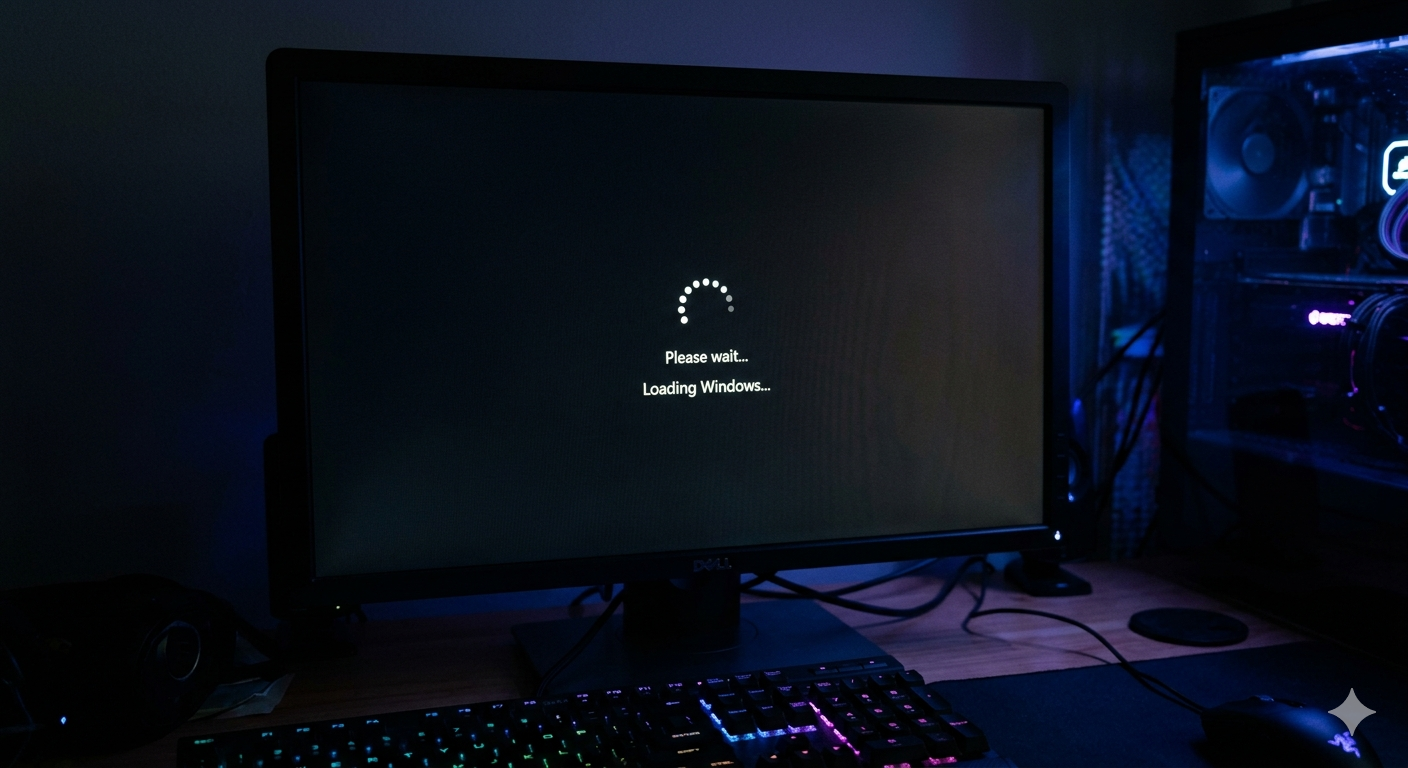
Windows Update is supposed to be automatic and seamless. So when it gets stuck at 0%, crashes with a cryptic error code, or rolls back after installing, it's incredibly frustrating. You know you need the security patch, but you can't get it installed.
This guide covers every major Windows Update error and the specific fix for each one.
Common Windows Update Error Codes and Their Fixes
Error 0x80070005 — "Access Denied"
This means Windows Update doesn't have permission to modify certain files.
Fix:
- Open Command Prompt as Administrator
- Run:
net stop wuauservthennet stop cryptSvcthennet stop bits - Navigate to
C:WindowsSoftwareDistributionand delete all files inside - Run:
net start wuauservthennet start cryptSvcthennet start bits - Try Windows Update again
Error 0x8007000d — "Data is Invalid"
Corrupt update components in the Windows Update cache.
Fix: Run the Windows Update Troubleshooter first:
- Settings → System → Troubleshoot → Other troubleshooters → Windows Update → Run
If that fails, clear the Software Distribution folder (same steps as above).
Error 0x80073712 — Missing Required Files
A file Windows Update needs is corrupt or missing.
Fix:
- Open Administrator Command Prompt
- Run:
DISM /Online /Cleanup-Image /RestoreHealth - Wait for it to complete (can take 15-30 minutes — requires internet)
- Run:
sfc /scannow - Restart and try updating again
Error 0x80240034 — Update Download Failed
Usually a temporary server or network issue, but can be a local cache problem.
Fix:
- Go to Settings → Windows Update → Advanced Options → Delivery Optimization
- Turn off "Allow downloads from other PCs" temporarily
- Clear the DNS cache: open Admin CMD →
ipconfig /flushdns - Restart Windows Update service via Services (services.msc)
Error 0x800f0922 — Can't Connect to Update Servers
Windows Update can't reach Microsoft's servers.
Fix:
- Check your internet connection and VPN — disconnect VPN if active
- Temporarily disable third-party firewall/antivirus
- Run:
netsh winsock resetin Admin CMD → Restart - Change your DNS to
8.8.8.8(Google) — see our WiFi guide for details
Fix: Windows Update Stuck at 0% or Specific Percentage
If the update simply won't progress:
Method 1: Restart the Windows Update Service
- Press Win + R, type
services.msc, press Enter - Find Windows Update service → right-click → Restart
- Also restart Background Intelligent Transfer Service (BITS)
Method 2: Delete the Software Distribution Folder
This folder holds all downloaded update files. Deleting it forces a fresh download.
- Open Admin CMD
- Run these commands one by one:
net stop wuauserv
net stop cryptSvc
net stop bits
net stop msiserver
- Navigate to
C:Windowsin File Explorer → rename folder SoftwareDistribution to SoftwareDistribution.old - Run these commands:
net start wuauserv
net start cryptSvc
net start bits
net start msiserver
- Go to Settings → Windows Update → Check for updates
Windows will recreate the folder and re-download updates fresh.
Method 3: Use the Windows Update Assistant
If Windows Update is completely broken, Microsoft offers a standalone tool:
- Go to microsoft.com/software-download/windows11
- Download the Windows 11 Installation Assistant
- Run it — it installs the latest version directly, bypassing the broken update mechanism
Fix: Update Installs but Keeps Rolling Back
If Windows installs an update successfully but reverts it on restart, you have a driver incompatibility or system file corruption.
- Run
sfc /scannow(Admin CMD) to fix system files - Go to Device Manager → look for yellow warning triangles on drivers
- Update the flagged drivers manually from the manufacturer's website
- Try the update again — it should stick this time
Fix: Windows Update Takes Hours to Complete
"Checking for updates" spinning forever is a classic Windows 7/8 leftover issue, but still appears on some Windows 11 machines.
- Make sure the Windows Update and BITS services are running (check services.msc)
- Set Windows Update to Manual check instead of automatic for now
- Ensure you have at least 10GB free disk space — updates fail silently without enough space
- Go to Storage Settings and clean up temporary files
The AI-Powered Approach to Update Errors
The problem with Windows Update errors is that the same error code can mean different things depending on your system's specific state. The 0x80073712 error on one machine requires DISM, while on another it's a third-party antivirus blocking file access.
FixPilot reads your exact system state — event logs, service status, disk space, running processes — and gives you the single correct fix for your specific situation. Press Ctrl+Shift+X when you see an update error and the AI will analyze everything and walk you through exactly what to do.
Conclusion
Windows Update errors are almost always solvable without a full Windows reinstall. Start with the built-in troubleshooter, then progress to clearing the Software Distribution folder, then DISM/SFC for deeper corruption. For specific error codes, match your code to the fix in this guide.
For a faster, smarter diagnosis that accounts for your specific system configuration, FixPilot's Vision AI identifies the root cause and guides you through the fix in minutes.
Tired of dealing with this issue?
Stop wasting your cognitive energy Googling and trying unreliable hacks. FixPilot is the ultimate solution—diagnosing and fixing your Windows PC errors in real-time with Vision AI.
Verified Safe Setup • 84MB Installer • Windows 10/11