Windows Using Too Much RAM? How to Free Up Memory and Fix High RAM Usage
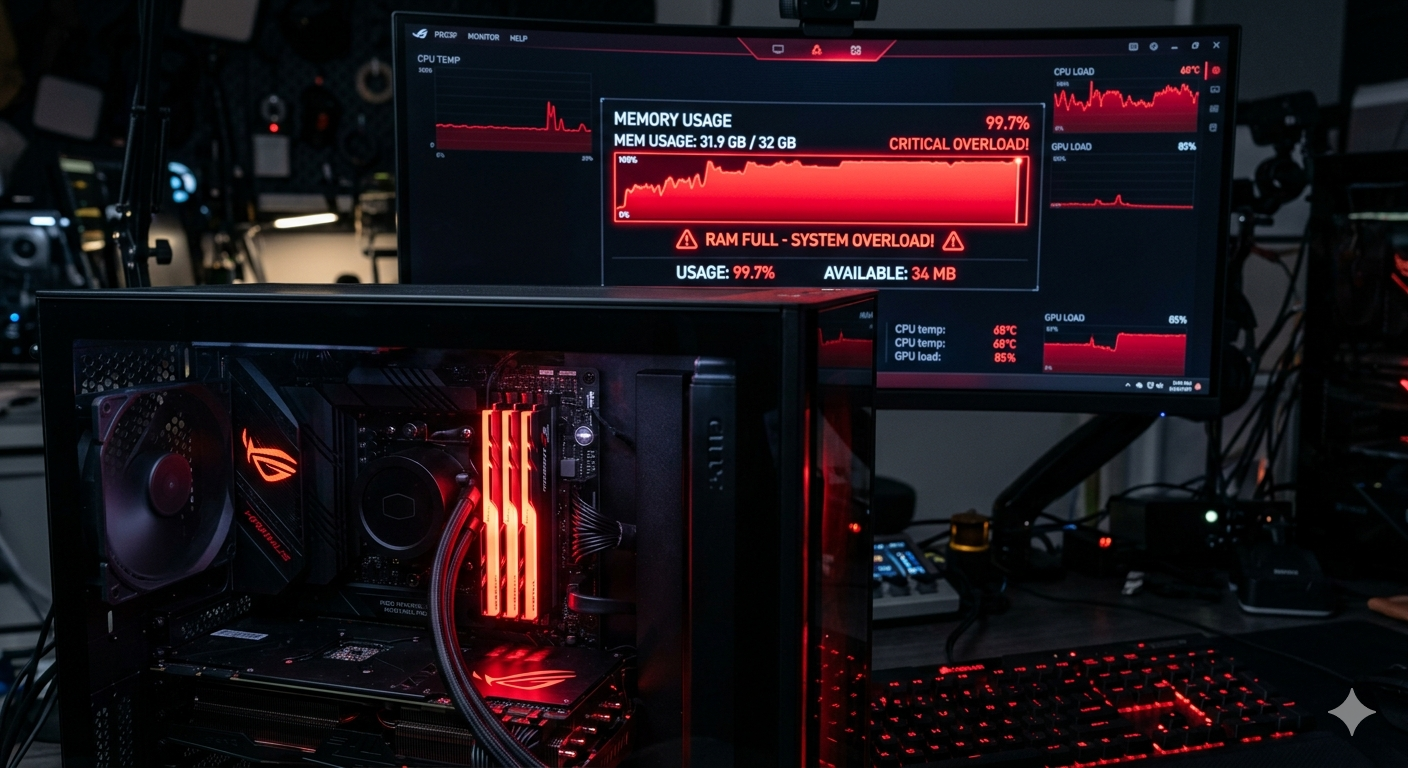
You open Task Manager and see RAM sitting at 80-90% usage even with barely any apps open. Windows feels sluggish, apps take forever to switch between, and you occasionally get warnings that your PC is low on memory.
High RAM usage is a fixable problem — and this guide covers every method to reclaim your memory and keep it free.
How Much RAM Is "Too Much"?
Normal baseline RAM usage for Windows 11 at idle (no apps open) is approximately:
- 4GB RAM systems: 60-75% used at idle (this is too little RAM for Windows 11)
- 8GB RAM systems: 40-55% used at idle
- 16GB RAM systems: 20-35% used at idle
If your usage is significantly higher than these baselines at idle, something is consuming RAM it should not be.
Step 1: Identify What Is Using Your RAM
- Press Ctrl+Shift+Esc → Task Manager
- Click the Memory column to sort highest first
- Look at which processes are using the most RAM
- Also check the Performance → Memory tab for:
- In use (actual RAM being used)
- Committed (RAM + pagefile combined)
- Cached (RAM Windows is using as disk cache — this is NORMAL and is released when apps need it)
Important: Windows intentionally uses "free" RAM as a disk cache. If most of your RAM is showing as "Cached" rather than "In use," that is normal and healthy — Windows will release it when needed.
Fix 1: Close Background Browser Tabs and Apps
Browsers are the biggest RAM consumers:
- Google Chrome: Each tab uses 100-500MB
- Microsoft Edge: Similar to Chrome (both use Chromium)
- Firefox: Better memory management but still significant
Quick fixes:
- Close all tabs you are not actively using
- Use Tab suspension extensions like "The Great Suspender" or Edge's built-in sleeping tabs feature
- In Chrome: Settings → Performance → Memory Saver — this suspends background tabs automatically
Fix 2: Disable Visual Effects (Saves 200-400MB)
Windows visual effects (transparency, animations, shadows) consume significant RAM.
- Press Win+X → System
- Click Advanced system settings
- Under Performance, click Settings
- Select Adjust for best performance (disables all effects)
- Or click Custom and uncheck:
- Animate windows when minimizing and maximizing
- Animations in the taskbar
- Fade or slide menus into view
- Transparency in glass
- Click OK
Fix 3: Disable SysMain (Superfetch) — Reclaim 500MB-1GB
SysMain preloads frequently used application data into RAM to speed up future launches. On systems with limited RAM, this backfires.
- Press Win+R →
services.msc - Find SysMain → right-click → Properties
- Set Startup type to Disabled → click Stop → OK
- Restart PC — you should immediately see lower RAM usage
Fix 4: Reduce Startup Programs
Programs that launch at startup continue running in the background, consuming RAM all session.
- Task Manager → Startup apps tab
- Disable every high-impact startup item you do not immediately need
- Restart and check RAM usage at idle
Fix 5: Adjust Virtual Memory (Pagefile) Settings
If Windows is constantly paging to disk due to low RAM, you can increase the pagefile to reduce pressure (though adding physical RAM is the real solution).
- Control Panel → System → Advanced system settings → Performance → Settings → Advanced → Change
- Uncheck Automatically manage paging file size for all drives
- Set Custom size:
- Initial size: 1.5× your physical RAM in MB
- Maximum size: 3× your physical RAM in MB
- Click Set → OK → Restart
Fix 6: Scan for Memory-Leaking Malware
Some malware is specifically designed to consume RAM (to slow your PC and push you toward tech support scams, or as a side effect of mining).
- Windows Security → Full scan
- Also run Malwarebytes Free
- If malware is found and removed, restart and check RAM usage
Fix 7: Check for Memory Leaks in Specific Apps
Some legitimate apps have memory leaks — they gradually consume more and more RAM the longer they run, until you restart them.
To identify a memory leak:
- Open Task Manager and note an app's RAM usage when you first open it
- Check again after 2-3 hours of use
- If it has grown dramatically (e.g., 200MB → 1.5GB) without you doing anything intensive, that app has a memory leak
Fix: Restart that specific app periodically, or check if an update fixes the leak.
Common apps with historical memory leak issues: older versions of Slack, Discord, certain Chrome extensions, and some Adobe apps.
Fix 8: Upgrade Your RAM (The Real Solution for 4GB/8GB Systems)
If you have 4GB RAM, Windows 11 is genuinely too big for it. You will constantly hit memory pressure.
- Minimum for comfortable Windows 11: 8GB
- Recommended for developers/gamers: 16GB
- Optimal for heavy workloads: 32GB
Check your laptop/desktop's maximum supported RAM and the number of available slots. RAM is relatively inexpensive — upgrading from 8GB to 16GB typically costs $25-60 and makes a transformative difference.
Fix 9: Clean Up Your RAM Without Restarting
For a temporary boost without restarting:
- Close all browser tabs you do not need
- Open Task Manager → More details
- Right-click any non-essential process → End task (be careful — only end things you recognize)
- Empty the Recycle Bin
- Run Disk Cleanup (Win+R →
cleanmgr)
Let FixPilot Identify Exactly What Is Eating Your RAM
Diagnosing high RAM usage manually takes time and knowledge of which processes are legitimate and which are not. FixPilot does this instantly.
Press Ctrl+Shift+X and the Vision AI reads your running process list, identifies unusual memory consumers, checks for known memory-leaking software, and gives you a prioritized list of exactly what to close or disable to recover your RAM — specific to your installed applications.
Conclusion
High RAM usage is fixable without upgrading hardware in most cases. Start by identifying the top RAM consumers in Task Manager, close unnecessary browser tabs, disable SysMain, and clean up startup programs. For systems with 4GB RAM, an upgrade is genuinely necessary for a smooth Windows 11 experience.
For a personalized analysis of what is consuming your specific PC's RAM and the highest-impact fixes, FixPilot's AI agent gives you the precise answer in seconds.
Tired of dealing with this issue?
Stop wasting your cognitive energy Googling and trying unreliable hacks. FixPilot is the ultimate solution—diagnosing and fixing your Windows PC errors in real-time with Vision AI.
Verified Safe Setup • 84MB Installer • Windows 10/11