Fix Windows 100% CPU Usage — Why Your PC is Slow and How to Fix It
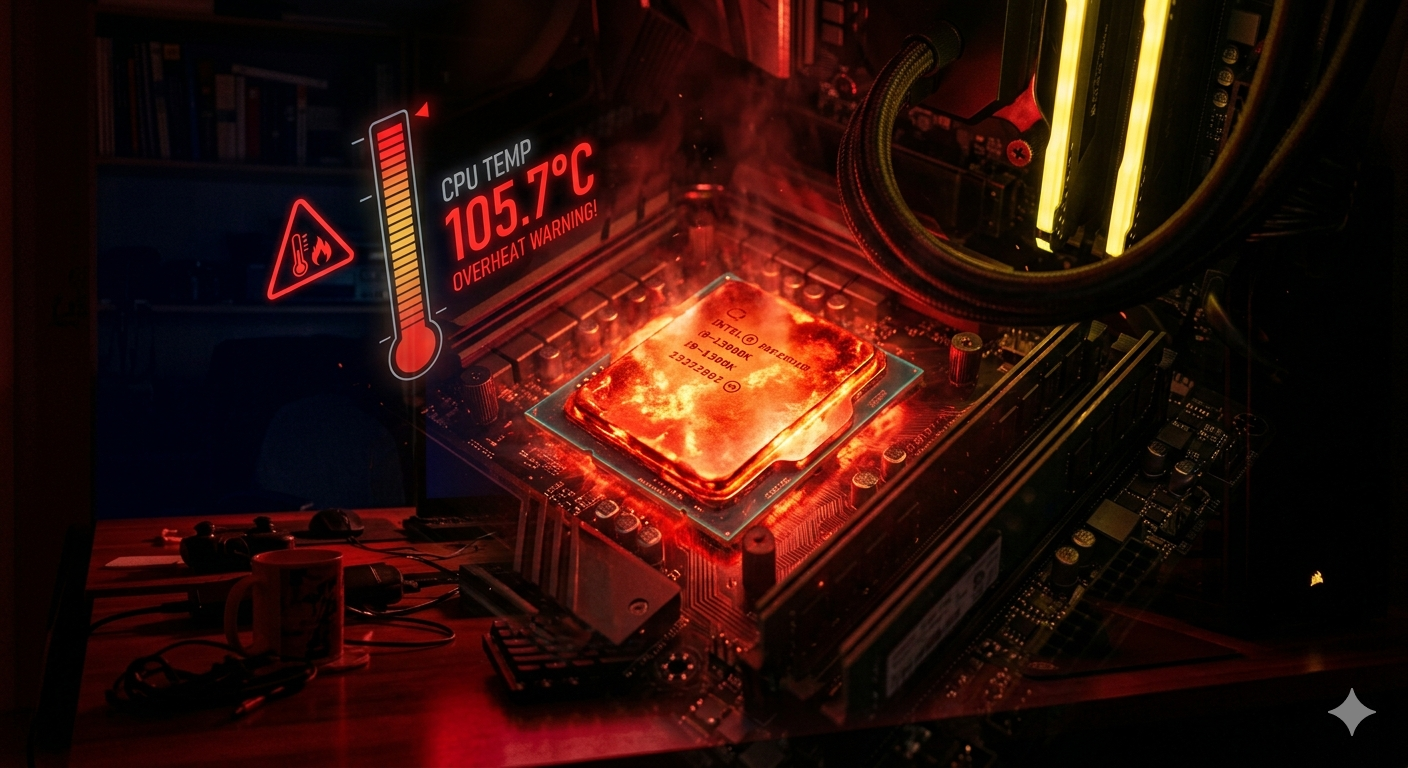
If your PC is running slowly, fans are screaming at full speed, and Task Manager shows 100% CPU usage even when you are doing nothing, you are not alone. This is one of the most common Windows performance complaints — and it has a definite fix.
Let's systematically diagnose and solve this problem.
Why Does 100% CPU Usage Happen?
High CPU usage means one or more processes are consuming nearly all of your processor's capacity. This can happen because of:
- Malware or cryptomining software running in the background
- Windows Update downloading/installing updates silently
- Antivirus scans running at peak times
- Bloatware and startup programs consuming resources
- Corrupt Windows processes like svchost.exe loops
- Outdated or incompatible drivers
- Browser extensions or electron apps leaking memory and CPU
- Thermal throttling (CPU slowing itself down due to overheating)
Step 1: Identify the Culprit in Task Manager
The first step is to find exactly which process is eating your CPU.
- Right-click the Taskbar → Task Manager (or press Ctrl+Shift+Esc)
- Click More Details if Task Manager is in compact mode
- Click the CPU column header to sort by CPU usage (highest at top)
- Note the process name using the most CPU
Common Culprits and What They Mean
svchost.exe (netsvcs) — Usually Windows Update or Superfetch
Antimalware Service Executable — Windows Defender scan in progress
System Interrupts — Driver or hardware issue
WmiPrvSE.exe — Windows Management Instrumentation issue
Runtime Broker — Microsoft Store app issue
Step 2: Fix Windows Update CPU Spike
Windows Update is the #1 cause of mysterious 100% CPU usage.
- Go to Settings → Windows Update → Advanced Options
- Set Active Hours so Windows doesn't update when you are working
- Click Pause Updates for 1 week to see if CPU drops immediately
- Go to Services (Win+R → services.msc) → Find Windows Update → Right-click → Restart
Step 3: Disable Superfetch / SysMain Service
The SysMain service (formerly Superfetch) preloads frequently used apps into RAM but can cause CPU spikes on older hardware or HDDs.
- Press Win + R, type
services.msc, press Enter - Find SysMain in the list
- Right-click → Properties → Change Startup type to Disabled
- Click Stop → OK
- Restart your PC and check CPU usage
Step 4: Scan for Malware
Cryptomining malware and other background threats are designed to hide in Task Manager but consume CPU constantly.
- Open Windows Security → Virus & threat protection
- Click Quick scan first, then run a Full scan overnight
- Also download Malwarebytes Free and run a scan alongside Defender
- If malware is found, let both tools quarantine and remove them
Step 5: Disable Startup Programs
Too many startup programs compete for CPU when Windows boots.
- Open Task Manager → Startup tab
- Right-click and Disable any program you don't need launching at startup
- Common safe ones to disable: Spotify, Discord, Teams, OneDrive, Adobe Updater
Step 6: Update or Reinstall Drivers
Corrupt or outdated drivers cause "System Interrupts" to spike to 100% CPU.
- Press Win + X → Device Manager
- Look for any device with a yellow warning triangle
- Right-click → Update driver → Search automatically
- For graphics: Go to NVIDIA/AMD website and download the latest GPU driver
Step 7: Check for Thermal Throttling
If your CPU runs hot (above 95°C), it throttles itself down — causing everything to feel slow even though Task Manager shows high usage.
- Download HWMonitor or Core Temp (both free)
- Run a demanding task and watch the temperatures
- If above 90°C: clean the CPU heatsink/fan with compressed air
- Consider applying fresh thermal paste (cheap, $5-10, huge impact)
Step 8: Adjust Power Plan Settings
Windows sometimes gets stuck in a low-performance power plan.
- Go to Control Panel → Power Options
- Select High Performance (or Balanced if on a laptop)
- Avoid "Power Saver" mode — it artificially limits CPU performance
Step 9: Run System File Checker
Corrupt Windows system files cause background processes to loop and spike CPU.
Open Command Prompt as Administrator and run:
sfc /scannow
DISM /Online /Cleanup-Image /RestoreHealth
Restart after both commands complete.
Still at 100%? Let AI Diagnose Your Exact System
The problem with generic guides is that every PC is different. The process eating YOUR CPU at 100% depends on your specific hardware, installed software, Windows version, and driver stack.
FixPilot solves this with Vision AI. Press Ctrl+Shift+X, and it:
- Reads your active processes and their exact resource usage
- Cross-references against known problematic services for your hardware
- Gives you a step-by-step, personalized fix guide overlaid directly on your screen
No guesswork. Just a direct path to a cool, responsive PC.
Conclusion
100% CPU usage is always caused by something specific — and it is always fixable. Work through these steps in order, from the quickest fixes (Windows Update, Startup programs) to the more in-depth ones (driver updates, hardware cleaning).
Your PC should return to normal operation after addressing the correct root cause. If you want a faster diagnosis tailored to your exact system, FixPilot's AI agent can identify and guide you through the fix in under two minutes.
Tired of dealing with this issue?
Stop wasting your cognitive energy Googling and trying unreliable hacks. FixPilot is the ultimate solution—diagnosing and fixing your Windows PC errors in real-time with Vision AI.
Verified Safe Setup • 84MB Installer • Windows 10/11