How to Fix "DLL File is Missing" Errors on Windows (All DLL Types)
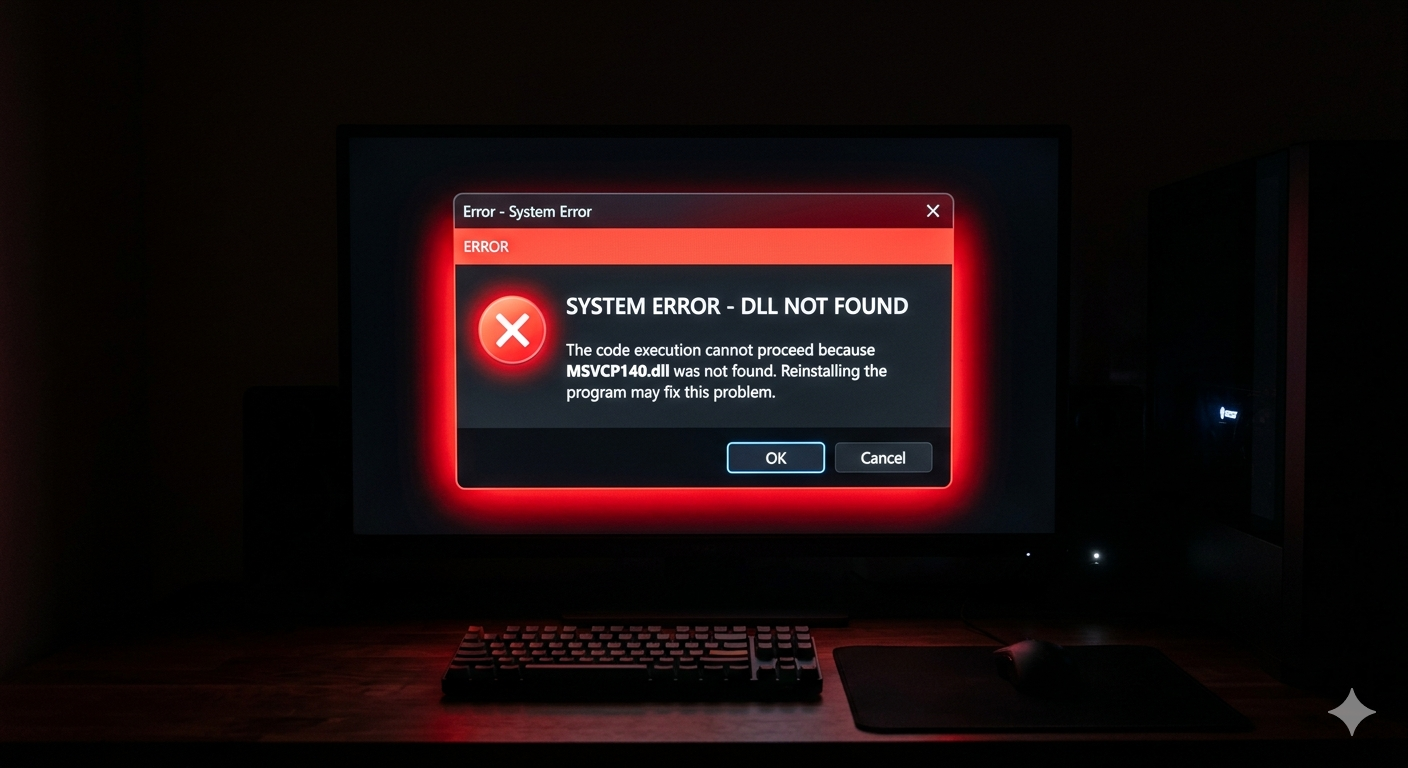
The error message appears the moment you try to launch a game or application: "The program can't start because MSVCP140.dll is missing from your computer" or "xinput1_3.dll was not found".
DLL errors are extremely common on Windows, especially after reinstalling an application, upgrading to Windows 11, or running a new game for the first time. Here is everything you need to know to fix them permanently.
What Is a DLL File?
DLL stands for Dynamic Link Library. These files contain shared code and resources that multiple programs can use simultaneously, rather than each application bundling its own copy.
When an application can't find the DLL it needs, it refuses to launch and shows the "missing" error.
The Most Common DLL Errors and Their Specific Fixes
MSVCP140.dll / VCRUNTIME140.dll Missing
These belong to the Microsoft Visual C++ 2015-2022 Redistributable. Almost every modern Windows application needs this.
Fix: Download and install directly from Microsoft:
- Go to microsoft.com/en-us/download/details.aspx?id=48145
- Download and install both the x64 and x86 versions
- Restart PC and try launching your application again
xinput1_3.dll / xinput1_4.dll Missing
These are part of DirectX and required by games and controllers.
Fix: Run the DirectX Web Installer:
- Go to microsoft.com/en-us/download/details.aspx?id=35
- Download and run dxwebsetup.exe
- This installs all missing DirectX components including xinput
d3dx9_XX.dll / d3dx11_XX.dll Missing
These are older DirectX 9/11 components needed by legacy games.
Fix: Same DirectX Web Installer as above resolves these.
api-ms-win-crt-runtime-l1-1-0.dll Missing
This belongs to the Universal C Runtime (UCRT) component.
Fix:
- Run Windows Update — this package is delivered via Windows Update
- Alternatively, install KB2999226 from the Microsoft Update Catalog
.NET Runtime DLL errors (like clr.dll, mscoreei.dll)
Fix:
- Settings → Apps → Optional Features → .NET
- Or download .NET Desktop Runtime from dotnet.microsoft.com/download
General DLL Fix Method (Works for Most Cases)
Method 1: Use System File Checker
Many DLL errors are caused by corruption in Windows itself:
sfc /scannow
DISM /Online /Cleanup-Image /RestoreHealth
Run both in Administrator Command Prompt. Restart afterward.
Method 2: Reinstall the Affected Application
If only one application shows the error, its installation may be incomplete:
- Settings → Apps → Installed Apps
- Find the application → Uninstall
- Download a fresh copy from the official website and reinstall
Method 3: Install Visual C++ Redistributables (Universal Fix)
Most DLL errors are Visual C++ related. Installing all versions covers 90% of cases:
Download and install all these from Microsoft's official site:
- Visual C++ 2005 Redistributable
- Visual C++ 2008 Redistributable
- Visual C++ 2010 Redistributable
- Visual C++ 2013 Redistributable
- Visual C++ 2015-2022 Redistributable (x64 AND x86)
Method 4: Register the DLL File Manually
If you have the DLL file but Windows can't find it:
- Copy the DLL file to
C:WindowsSystem32(for 64-bit apps) orC:WindowsSysWOW64(for 32-bit apps) - Open Admin CMD
- Run:
regsvr32 filename.dll(replace filename with the actual DLL name)
What NOT to Do: DLL Download Sites
Never download DLL files from random websites like dll-files.com, dlldump.com, or similar sites. These sites frequently bundle malware with DLL files. The "missing DLL" error you get could become a malware infection that's much harder to fix.
Always get DLL files from:
- Microsoft's official download center
- The original software's official installer
- Windows Update
DLL Errors in Games: Special Cases
Steam Games Showing DLL Errors
- Right-click the game in Steam → Properties → Local Files → Verify integrity of game files
- Steam will redownload any missing or corrupt files including DLLs
Epic Games Launcher DLL Errors
- Open Epic Games → Library → find the game → three dots → Verify
After Windows 11 Upgrade
A Windows 11 upgrade sometimes breaks Visual C++ Redistributable installations. Uninstall ALL Visual C++ Redistributables from Apps, then reinstall all of them fresh.
The AI-Powered Fix: Let FixPilot Identify the Exact DLL and Source
DLL errors are confusing because the missing file name doesn't always tell you which package to install. FixPilot eliminates the confusion:
Press Ctrl+Shift+X when you see the DLL error dialog, and the Vision AI:
- Reads the exact DLL name from the error dialog on your screen
- Identifies which software package that DLL belongs to
- Gives you a direct link to the correct Microsoft package to install
- Walks you through the installation step by step
No searching across multiple Microsoft pages, no confusion about x64 vs x86, no risky third-party downloads.
Conclusion
DLL errors are almost never permanent. They almost always mean a required software package (Visual C++, DirectX, .NET) is missing or corrupt. Install the correct Microsoft package for your specific error, and the application will launch perfectly.
For a precise diagnosis that tells you exactly which package to install for your specific DLL error, FixPilot's Vision AI reads the error directly from your screen and gives you the answer in seconds.
Tired of dealing with this issue?
Stop wasting your cognitive energy Googling and trying unreliable hacks. FixPilot is the ultimate solution—diagnosing and fixing your Windows PC errors in real-time with Vision AI.
Verified Safe Setup • 84MB Installer • Windows 10/11