Windows Disk at 100% Usage? Here Is the Real Fix
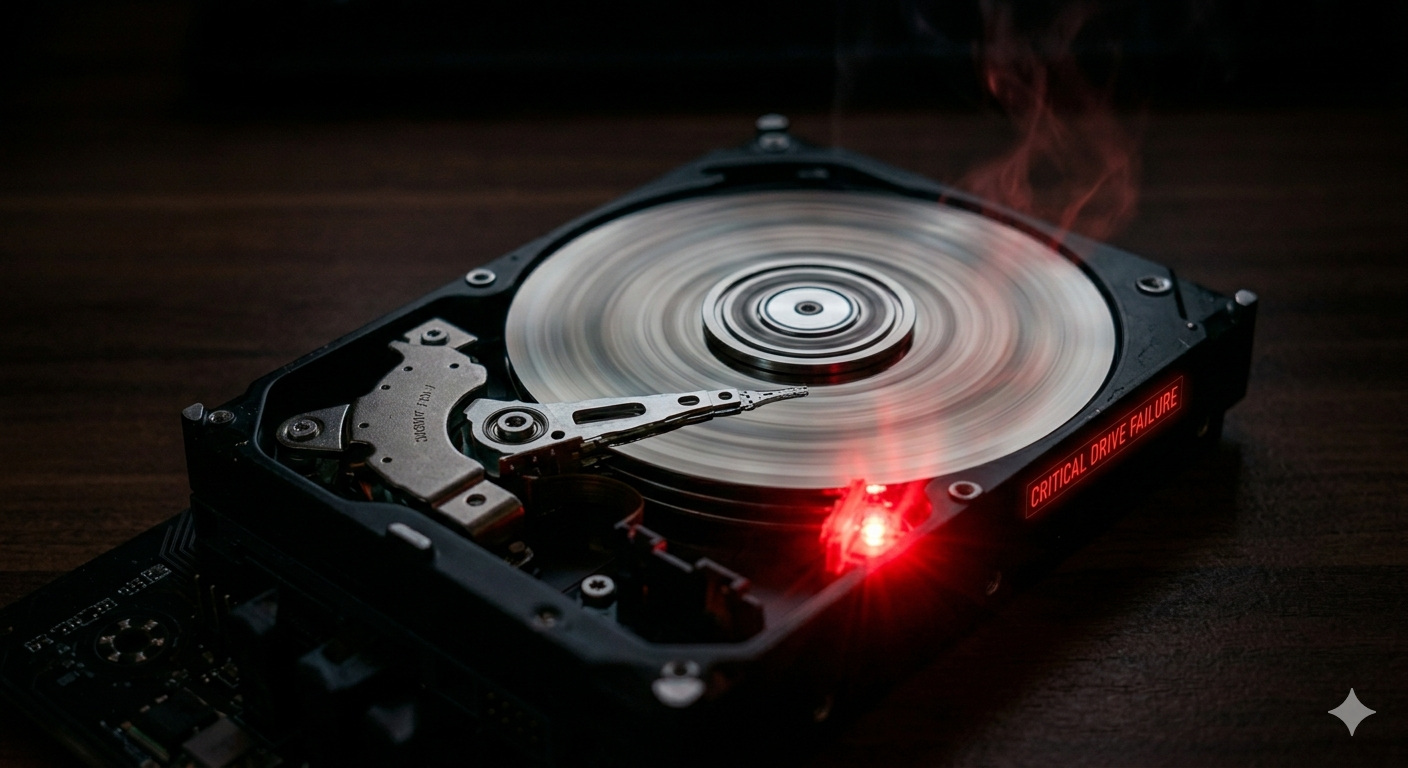
Open Task Manager and you see it: the Disk column sitting at 100% even when you are doing nothing. Your PC grinds to a halt — programs take minutes to open, file copying stalls, and even typing feels delayed. This is one of the most common complaints on Windows 10 and 11.
The good news is this problem has clear, identifiable causes and straightforward fixes.
What Causes 100% Disk Usage?
Your disk hits 100% when multiple processes are simultaneously reading from or writing to it faster than it can handle. On HDDs (mechanical hard drives), this is especially brutal. On SSDs it is less common but still happens. Culprits include:
- Windows Search Indexing — re-indexing files in the background
- Superfetch/SysMain — preloading applications into RAM by reading from disk
- Windows Update — downloading and installing updates silently
- Antivirus scans — Defender or third-party AV scanning files
- Failing hard drive — a dying HDD struggles to read data and shows 100% usage
- Virtual Memory / Pagefile — Windows using the disk as extra RAM
- Browser or application bugs — Chrome, Edge, or apps writing excessive log files
- Malware — ransomware encrypting files or miners reading wallet files
Step 1: Identify the Culprit in Task Manager
- Press Ctrl+Shift+Esc to open Task Manager
- Click the Disk column header to sort by disk usage (highest first)
- Note the process name using the most disk
Common culprits:
- SearchIndexer.exe → Windows Search indexing
- MsMpEng.exe → Windows Defender scanning
- SysMain → Superfetch preloading
- svchost.exe (netsvcs) → Windows Update downloading
- System → usually a driver or pagefile issue
- ntoskrnl.exe → kernel or storage driver issue
Fix 1: Disable SysMain (Superfetch)
SysMain constantly reads files from disk to preload apps into RAM. On HDDs and slower SSDs, this causes 100% disk usage.
- Press Win + R → type
services.msc→ Enter - Find SysMain → double-click
- Set Startup type to Disabled
- Click Stop → OK
- Restart and check disk usage
This alone fixes the problem for many users, especially those on HDDs.
Fix 2: Disable Windows Search Indexing
If SearchIndexer.exe is the culprit:
- In services.msc, find Windows Search
- Set Startup type to Disabled → click Stop
- Restart PC
You will lose the ability to search files by content (you can still search by filename), but your disk usage will drop dramatically. Re-enable it later after the initial indexing completes if you want full search functionality.
Fix 3: Pause Windows Update
If svchost.exe (netsvcs) or Windows Update is causing the disk spike:
- Settings → Windows Update
- Click Pause updates for 1 week
- Wait 10 minutes and check if disk usage drops
To manually stop it temporarily:
- In services.msc, find Windows Update → right-click → Stop
- Also stop Background Intelligent Transfer Service (BITS)
Fix 4: Check and Fix Virtual Memory (Pagefile) Settings
If the System process is causing 100% disk usage, the pagefile (virtual memory) may be misconfigured.
- Press Win + X → System
- Click Advanced system settings → Performance → Settings
- Click Advanced tab → Change under Virtual Memory
- Uncheck Automatically manage paging file size
- Select your C: drive → click Custom size
- Set Initial size to 1.5x your RAM in MB (e.g., 12288 for 8GB RAM)
- Set Maximum size to 3x your RAM in MB (e.g., 24576 for 8GB RAM)
- Click Set → OK → Restart
Fix 5: Check Your Hard Drive Health
A failing HDD shows 100% disk usage because it takes multiple attempts to read sectors. This is a serious warning sign — back up your data immediately if this is the cause.
Check SMART status:
- Download CrystalDiskInfo (free, reputable tool)
- Open it — it reads your drive's SMART health data
- If it shows Caution or Bad, your drive is failing
Run Check Disk: Open Admin CMD:
chkdsk C: /f /r /x
Press Y to schedule for next restart. This scans for bad sectors and attempts to repair them. Takes 30-60 minutes on a full drive.
Fix 6: Disable the DiagTrack Service (Telemetry)
Microsoft's Connected User Experiences and Telemetry service sends diagnostic data to Microsoft servers and reads many system files to do so.
- In services.msc, find Connected User Experiences and Telemetry
- Right-click → Properties → set Startup type to Disabled
- Click Stop → OK
Fix 7: Flash Storage Firmware Update
For SSDs, outdated firmware can cause severe performance degradation. Check your SSD manufacturer's website for a firmware update tool:
- Samsung: Samsung Magician
- WD / SanDisk: WD Dashboard
- Crucial / Micron: Crucial Storage Executive
- SK Hynix: Hynix SSD Box
Fix 8: Increase RAM to Reduce Disk Paging
If you have less than 8GB RAM, Windows constantly uses the disk as virtual memory — causing persistent 100% disk usage. Adding RAM (if your laptop/desktop supports it) is the most effective permanent solution for this specific cause.
- 8GB minimum for smooth Windows 11 operation
- 16GB recommended for developers and power users
Fix 9: Scan for Malware
Ransomware and cryptominers cause 100% disk usage by constantly reading and writing files.
- Windows Security → Virus & threat protection → Full scan
- Also run Malwarebytes Free for a second opinion scan
- If anything is found, quarantine and remove it, then restart
The AI Approach: Know Exactly What Is Hitting Your Disk
The challenge with 100% disk usage is that you can see IT IS happening, but finding which specific process and why requires investigation. FixPilot does this instantly.
Press Ctrl+Shift+X, and the Vision AI reads your current Task Manager state, running services, and drive health metrics to tell you the exact cause on your specific system — and gives you the corresponding fix, step by step.
Conclusion
100% disk usage is always caused by something specific. Identify it in Task Manager, match it to the fixes above, and your disk will return to normal usage levels. SysMain and Windows Search indexing are the most common causes and the easiest to fix.
For a personalized diagnosis of exactly what is causing your disk to run at 100%, FixPilot's Vision AI gives you the precise answer for your hardware and configuration in seconds.
Tired of dealing with this issue?
Stop wasting your cognitive energy Googling and trying unreliable hacks. FixPilot is the ultimate solution—diagnosing and fixing your Windows PC errors in real-time with Vision AI.
Verified Safe Setup • 84MB Installer • Windows 10/11