Fix "Windows Cannot Connect to the Printer" (Error 0x0000011b)
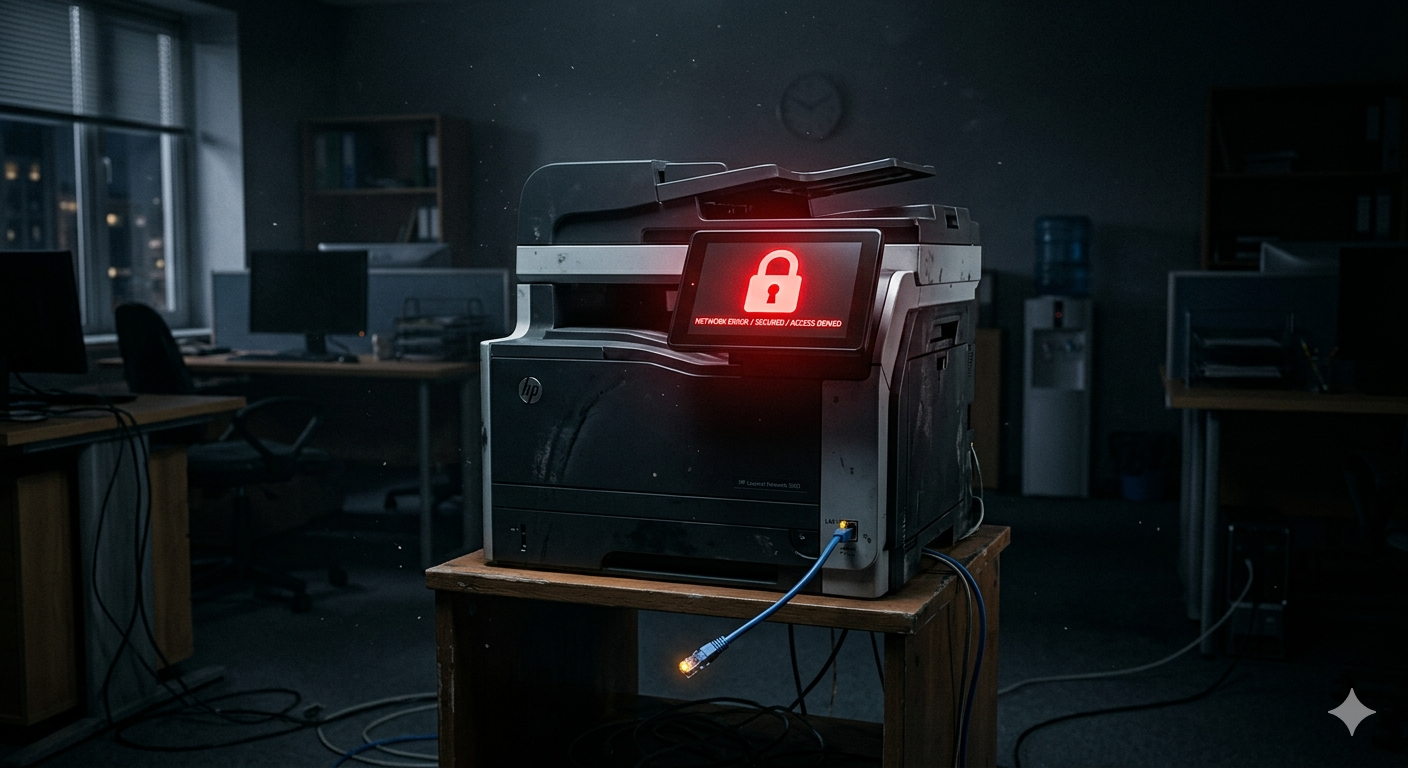
You are trying to connect to a shared printer on your office or home network. You double-click the printer, Windows attempts to install the drivers, and then... a red X appears.
"Windows cannot connect to the printer. Operation failed with error 0x0000011b" (or sometimes 0x00000709).
This error has plagued Windows users since late 2021 when Microsoft released a security patch designed to stop the "PrintNightmare" vulnerability. While it secured networks, it completely broke legitimate printer sharing for millions of users.
Here is the definitive guide to fixing this error and getting your shared printer working again.
Why Does Error 0x0000011b Happen?
To stop attackers from executing malicious code via the Windows Print Spooler (the PrintNightmare exploit), Microsoft changed how Windows authenticates remote print jobs. Specifically, they forced RPC (Remote Procedure Call) Packet Privacy on print connections.
If the host PC (the one the printer is plugged into) requires this security level, but the guest PC (the one trying to print) doesn't support it or isn't configured for it, the connection is rejected with error 0x0000011b.
The Fix: Modify the Registry on the Host PC
Because this is a fundamental change to Windows security policy, the most reliable fix involves adding a registry key on the Host PC (the computer the printer is physically connected to via USB).
Note: You must perform these steps on the Host PC, not the PC that is receiving the error.
Step 1: Open the Registry Editor
- Go to the Host PC (the computer sharing the printer).
- Press Win + R, type
regedit, and press Enter. - Click Yes if prompted by User Account Control.
Step 2: Navigate to the Print Key
Navigate to this exact path in the left pane:
Computer\HKEY_LOCAL_MACHINE\SYSTEM\CurrentControlSet\Control\Print
Step 3: Create the New Value
- Right-click on the Print folder in the left pane.
- Select New → DWORD (32-bit) Value.
- Name the new value exactly:
RpcAuthnLevelPrivacyEnabled - Press Enter to save the name.
Step 4: Set the Value Data
- Double-click the new
RpcAuthnLevelPrivacyEnabledvalue you just created. - Ensure the Value data is set to
0. - Click OK.
Step 5: Restart the Print Spooler
For the changes to take effect immediately without restarting the whole PC:
- Press Win + R, type
services.msc, and press Enter. - Scroll down to Print Spooler.
- Right-click it and select Restart.
Now, Try Connecting Again
Go back to the Guest PC (the one that was getting the error). Try adding the shared printer again. It should now connect flawlessly without throwing the 0x0000011b error.
Alternative Fix: Update Both PCs
Sometimes, bypassing the security requirement isn't ideal for corporate networks. The "proper" Microsoft fix is to ensure that both the Host PC and the Guest PC have the exact same Windows Updates installed.
- On both PCs, go to Settings → Windows Update.
- Click Check for updates.
- Install all available cumulative updates.
- Restart both PCs.
If both machines are fully patched and running the same exact security build, the RPC authentication handshake usually succeeds without needing the registry hack.
Why Manual Troubleshooting is Frustrating
Fixing error 0x0000011b requires knowing the difference between a Host and Guest PC, navigating the Windows Registry (which can be dangerous if done incorrectly), and restarting system services. It's a highly technical process for what should be a simple task: printing a document.
When you encounter obscure error codes like this, searching forums and watching outdated YouTube tutorials drains your time and focus.
The Smarter Way to Fix Complex Errors
Instead of digging through the registry manually, FixPilot offers a seamless, intelligent alternative.
When you get a printer connection error, simply press Ctrl+Shift+X. FixPilot's Vision AI:
- Reads the specific error code directly from the dialog box on your screen.
- Analyzes your network configuration.
- Overlays safe, step-by-step visual guides showing you exactly where to click to apply the fix—no registry guesswork required.
If you are tired of losing hours to confusing Windows networking issues, FixPilot is the ultimate solution—diagnosing and fixing your Windows PC errors in real-time with Vision AI.
Tired of dealing with this issue?
Stop wasting your cognitive energy Googling and trying unreliable hacks. FixPilot is the ultimate solution—diagnosing and fixing your Windows PC errors in real-time with Vision AI.
Verified Safe Setup • 84MB Installer • Windows 10/11