Windows Black Screen on Startup — 8 Fixes That Actually Work
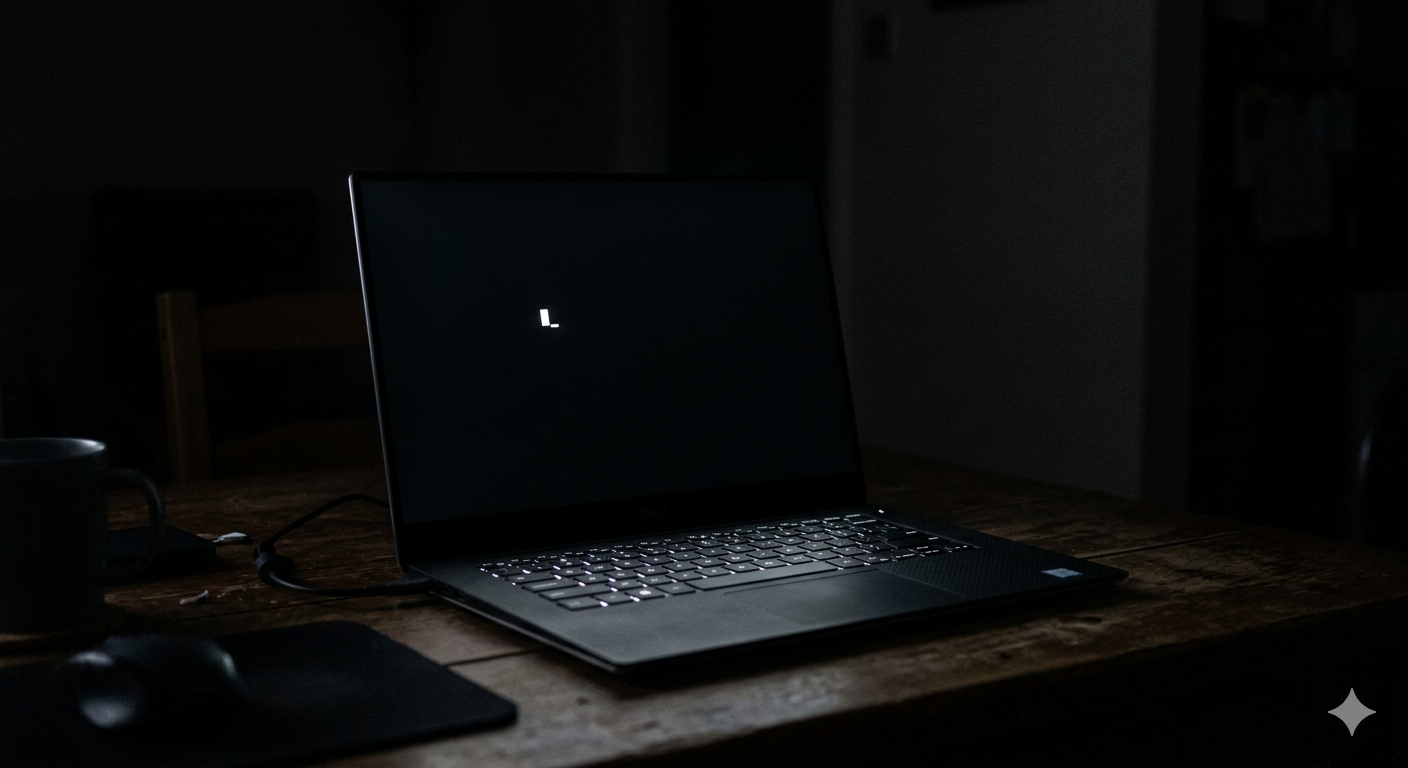
You press the power button, you hear the fans spin up, but instead of Windows loading — you get a completely black screen. Sometimes the cursor appears, sometimes nothing. Sometimes it happens after the login screen, sometimes before.
A black screen is one of the more serious Windows problems because it blocks all interaction. But it is almost always fixable without reinstalling Windows. Here is how.
Types of Black Screen and What They Mean
Black screen BEFORE the login screen (BIOS splash, then black):
- Display driver or monitor output issue
- Boot sector or bootloader corruption
- Hardware connection issue
Black screen AFTER login / during startup:
- Explorer.exe (Windows shell) crashed or failed to start
- Display driver crash after login
- Third-party startup program causing a crash
- Windows Update partially installed and corrupt
Black screen WITH cursor:
- Explorer.exe is not running
- Display driver loaded but shell failed
- User profile corruption
Black screen AFTER sleep/hibernate:
- Display driver failed to restore after sleep
- Fast Startup causing hardware state conflict
Fix 1: Basic Checks (Do These First)
Before assuming a software problem:
- Check monitor connection — unplug and replug the HDMI/DisplayPort cable at both ends
- Try a different port — if using a GPU, try the HDMI port on the motherboard (iGPU)
- Try a different cable
- Press Ctrl+Alt+Del — if a menu appears, the system is running but the display driver is frozen. Click Task Manager from the menu.
- Wait 5 minutes — sometimes Windows is still finishing a background update and the screen is temporarily black
Fix 2: Force Restart Explorer.exe
If you have a black screen with a cursor, Explorer.exe likely crashed.
- Press Ctrl+Alt+Del → Click Task Manager
- Click File → Run new task
- Type
explorer.exe→ press Enter - Windows should immediately restore the desktop
To prevent this happening again:
- In Task Manager → Details tab → right-click explorer.exe → Go to service(s)
- Note which service is tied to it and check its state
Fix 3: Boot into Safe Mode to Diagnose
Safe Mode loads Windows with minimal drivers and startup programs, letting you identify the culprit.
To access Safe Mode when you can't boot normally:
- Force-restart your PC 3 times (hold power button during Windows loading)
- Windows will automatically boot into Windows Recovery Environment (WinRE)
- Go to Troubleshoot → Advanced Options → Startup Settings
- Press F4 for Safe Mode or F5 for Safe Mode with Networking
Once in Safe Mode:
- If your PC works fine → the problem is a driver or startup program
- If it's still black → you have a deeper system file corruption issue
Fix 4: Disable Fast Startup (Fixes Most Post-Sleep Black Screens)
Fast Startup saves system state to disk instead of a full shutdown. This causes conflicts with certain hardware and display drivers.
- Boot into Safe Mode (see Fix 3)
- Control Panel → Power Options → Choose what the power buttons do
- Click Change settings that are currently unavailable
- Uncheck "Turn on fast startup"
- Click Save and restart normally
Fix 5: Roll Back or Reinstall the Display Driver
A bad GPU driver causes black screen on startup or after sleep.
In Safe Mode:
- Press Win + X → Device Manager
- Expand Display adapters
- Right-click your GPU → Properties → Driver → Roll Back Driver
- If Roll Back is grayed out: right-click → Uninstall device → check "Delete driver software" → Restart
Windows reinstalls the generic display driver, which should restore the display. Then download the correct GPU driver from:
- NVIDIA: nvidia.com/Download
- AMD: amd.com/support
- Intel iGPU: intel.com/content/www/us/en/support
Fix 6: Check for Corrupt System Files
- Boot into Safe Mode
- Open Admin Command Prompt
- Run:
sfc /scannow
DISM /Online /Cleanup-Image /RestoreHealth
- Restart normally after completion
Fix 7: Disable Startup Programs (Identify Conflicting Software)
A startup program causing a crash can make Windows appear to hang on a black screen.
- In Safe Mode: press Ctrl+Shift+Esc → Startup tab
- Right-click and Disable all non-Microsoft startup programs
- Restart normally — if the black screen is gone, re-enable startup programs one by one to find the culprit
Fix 8: Use Startup Repair from Windows Recovery
If none of the above work:
- Boot from a Windows 11 USB installer (create one using the Media Creation Tool on another PC)
- Boot from USB → click Repair your computer (don't install)
- Troubleshoot → Advanced Options → Startup Repair
- Let it complete — this automatically fixes bootloader and startup file corruption
Fix: Black Screen Specifically After Windows Update
- Boot into WinRE (3 forced restarts)
- Troubleshoot → Advanced Options → Uninstall Updates
- Click Uninstall latest quality update
- Restart — this rolls back the problematic update
When to Reinstall Windows
If all of the above fail and even Startup Repair cannot fix the issue, a clean Windows reinstall is the next step. Use the Reset this PC option (keeping your files) from WinRE before doing a full reinstall:
WinRE → Troubleshoot → Reset this PC → Keep my files
The Smarter Path: AI-Guided Black Screen Diagnosis
Once you restore screen access (even via Safe Mode), FixPilot can immediately diagnose what caused the black screen by reading your system event logs, driver states, and startup records. Press Ctrl+Shift+X and the Vision AI provides a precise diagnosis and a step-by-step fix specifically for your hardware and Windows version.
Conclusion
A black screen on startup is serious but rarely requires a Windows reinstall. Work through these fixes in order: basic hardware checks first, then driver issues, then system file corruption, and finally the nuclear option of Startup Repair. Most black screen cases are resolved by the display driver fix or disabling Fast Startup.
Tired of dealing with this issue?
Stop wasting your cognitive energy Googling and trying unreliable hacks. FixPilot is the ultimate solution—diagnosing and fixing your Windows PC errors in real-time with Vision AI.
Verified Safe Setup • 84MB Installer • Windows 10/11