Printer Not Working on Windows? Fix Every Printer Problem in 2026
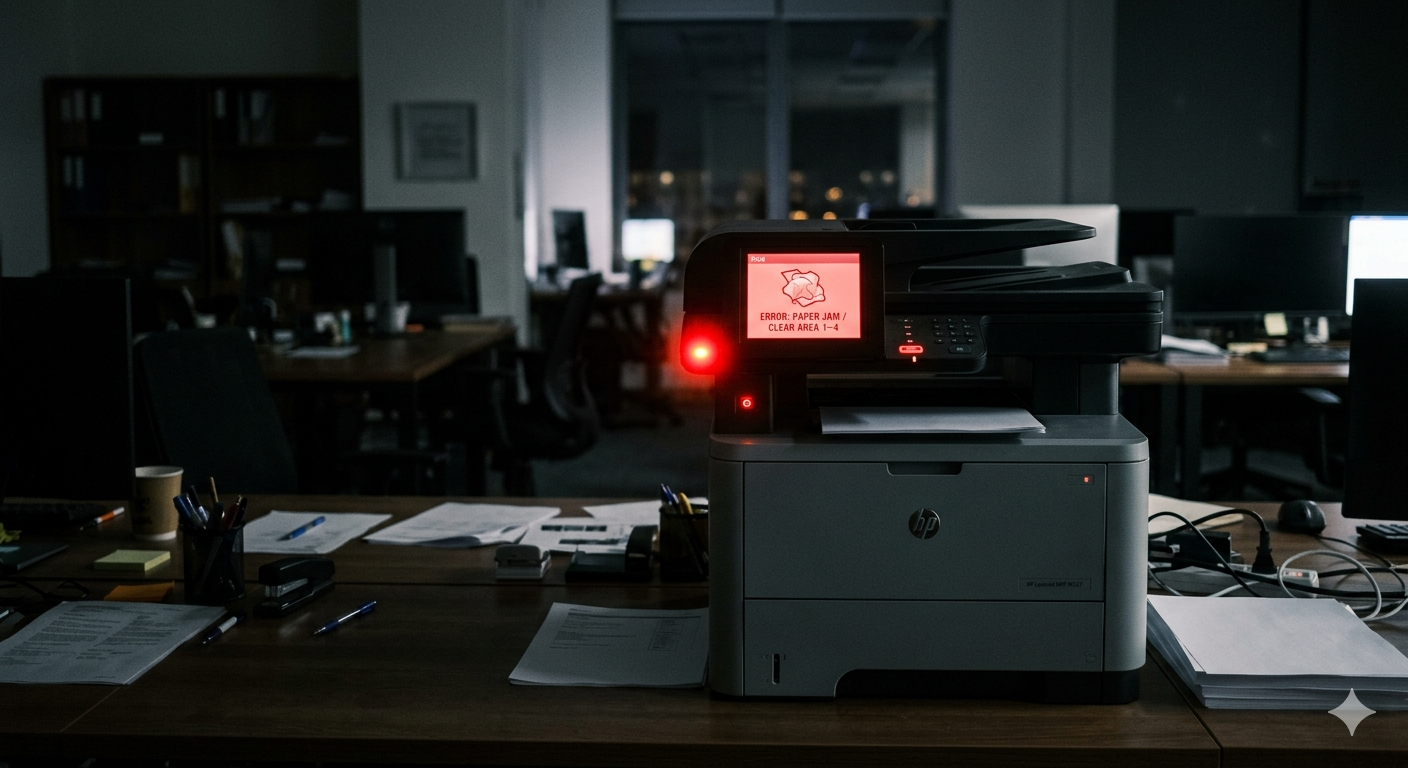
Few things are as frustrating as needing to print something urgently and having your printer refuse to cooperate. "Printer Offline," jobs stuck in the queue, the printer visible but not printing — Windows printer problems come in many forms. Here is the comprehensive guide to fixing all of them.
Most Common Printer Problems and Their Fixes
Problem 1: Printer Shows as "Offline"
Why it happens: Windows lost communication with the printer — usually because the printer was turned off, the USB/network connection dropped, or a print job error corrupted the queue.
Fix:
- Make sure the printer is physically on and connected (USB or same WiFi network)
- Right-click the printer in Settings → Bluetooth & devices → Printers & scanners
- Click Open print queue
- In the printer window menu: Printer → Uncheck "Use Printer Offline"
- Cancel all pending jobs in the queue
- Restart the printer (power off, wait 10 seconds, power on)
Problem 2: Print Job Stuck in Queue
Why it happens: A corrupted print job blocks the queue. New jobs cannot print until it is cleared.
Fix:
- Open Services (Win+R →
services.msc) - Find Print Spooler → right-click → Stop
- Navigate to
C:WindowsSystem32spoolPRINTERS - Delete all files inside this folder (do not delete the folder itself)
- Go back to Services → right-click Print Spooler → Start
- Try printing again
This clears the corrupt queue and almost always resolves stuck jobs.
Problem 3: Printer Not Found / Not Detected
Why it happens: Windows cannot detect the printer — driver not installed, USB port issue, or the printer is on a different network.
USB Printers:
- Try a different USB port on your PC
- Try a different USB cable
- Uninstall the printer: Settings → Printers & scanners → click printer → Remove
- Reinstall: click Add a printer or scanner and let Windows detect it
Network/WiFi Printers:
- Confirm the printer is connected to the same WiFi network as your PC
- Print the network configuration page from the printer's physical menu to see its IP address
- In Windows: Add a printer → The printer I want isn't listed → Add a printer using an IP address or hostname
- Enter the printer's IP address
Problem 4: Driver Not Compatible or Missing
- Settings → Printers & scanners → click your printer → Printer properties
- Check the driver version shown
- Go to your printer manufacturer's website and download the latest driver:
- HP: support.hp.com
- Canon: usa.canon.com/support
- Epson: epson.com/support
- Brother: support.brother.com
- Run the downloaded installer — choose Full Driver not just the basic driver
Problem 5: Printer Prints Blank Pages
For inkjet printers:
- Ink cartridges may be empty or dried out (happens when not printed for months)
- Run the head cleaning utility from your printer software
- If ink is low, replace the cartridge
For laser printers:
- Toner cartridge may be empty or the protective strip was not removed when installed
- Remove and gently shake the toner cartridge side-to-side to redistribute toner
For all printers:
- Open the printer's software on your PC
- Look for a Print Quality Diagnostic or Nozzle Check option
- Run the built-in cleaning/test function
Problem 6: Printer Prints Garbled / Corrupted Text
Usually a driver corruption issue:
- Uninstall the printer completely — including all associated software
- Restart PC
- Reinstall using the latest driver from the manufacturer's website (not the CD that came with the printer — those drivers are years old)
Problem 7: Cannot Connect to Network Printer After Windows Update
Windows updates sometimes break network printer connections by changing firewall rules.
- Windows Defender Firewall → Allow an app through firewall
- Click Change settings → find File and Printer Sharing → check both Private and Public
- Also check: Control Panel → Network and Sharing Center → Change advanced sharing settings
- Enable File and printer sharing
Run the Printer Troubleshooter (Do This for Any Problem)
- Settings → System → Troubleshoot → Other troubleshooters
- Find Printer → click Run
- Let it detect and automatically fix common issues
This resolves driver issues and stuck queues automatically about 40% of the time.
Reset the Print Spooler Service (Universal Fix)
The Print Spooler manages all print jobs. Resetting it fixes most printer problems:
Open Admin Command Prompt and run:
net stop spooler
del /Q /F /S "%systemroot%System32spoolPRINTERS*.*"
net start spooler
This stops the service, clears all pending jobs, and restarts it cleanly.
For Shared Network Printers (Office/Home Network)
- On the host PC (the one the printer is directly connected to): ensure File and Printer Sharing is enabled in Network settings
- Right-click the printer in Devices and Printers → Printer properties → Sharing → check Share this printer
- On your PC: Add a printer → browse for the shared printer on the network
Let AI Diagnose Your Printer Problem
Printer issues are context-dependent — the fix for a USB printer on Windows 10 is different from a WiFi printer on Windows 11 after an update. FixPilot reads your exact printer status, error messages, and Windows configuration to give you the single correct fix for your specific situation.
Press Ctrl+Shift+X when you encounter a printer error, and the Vision AI reads the error message directly from your screen and your printer's reported status to guide you through the exact resolution.
Conclusion
Printer problems follow predictable patterns. For most issues: clear the print queue (stop spooler, delete spool files, restart spooler), then reinstall the driver from the manufacturer's website. For network printers, confirm the printer is on the same network and add it by IP address if automatic detection fails.
For a faster, more precise diagnosis of your specific printer error, FixPilot's AI agent identifies the exact cause and fix for your printer and Windows configuration in under two minutes.
Tired of dealing with this issue?
Stop wasting your cognitive energy Googling and trying unreliable hacks. FixPilot is the ultimate solution—diagnosing and fixing your Windows PC errors in real-time with Vision AI.
Verified Safe Setup • 84MB Installer • Windows 10/11