How to Fix Blue Screen of Death (BSOD) on Windows 11 — Complete Guide
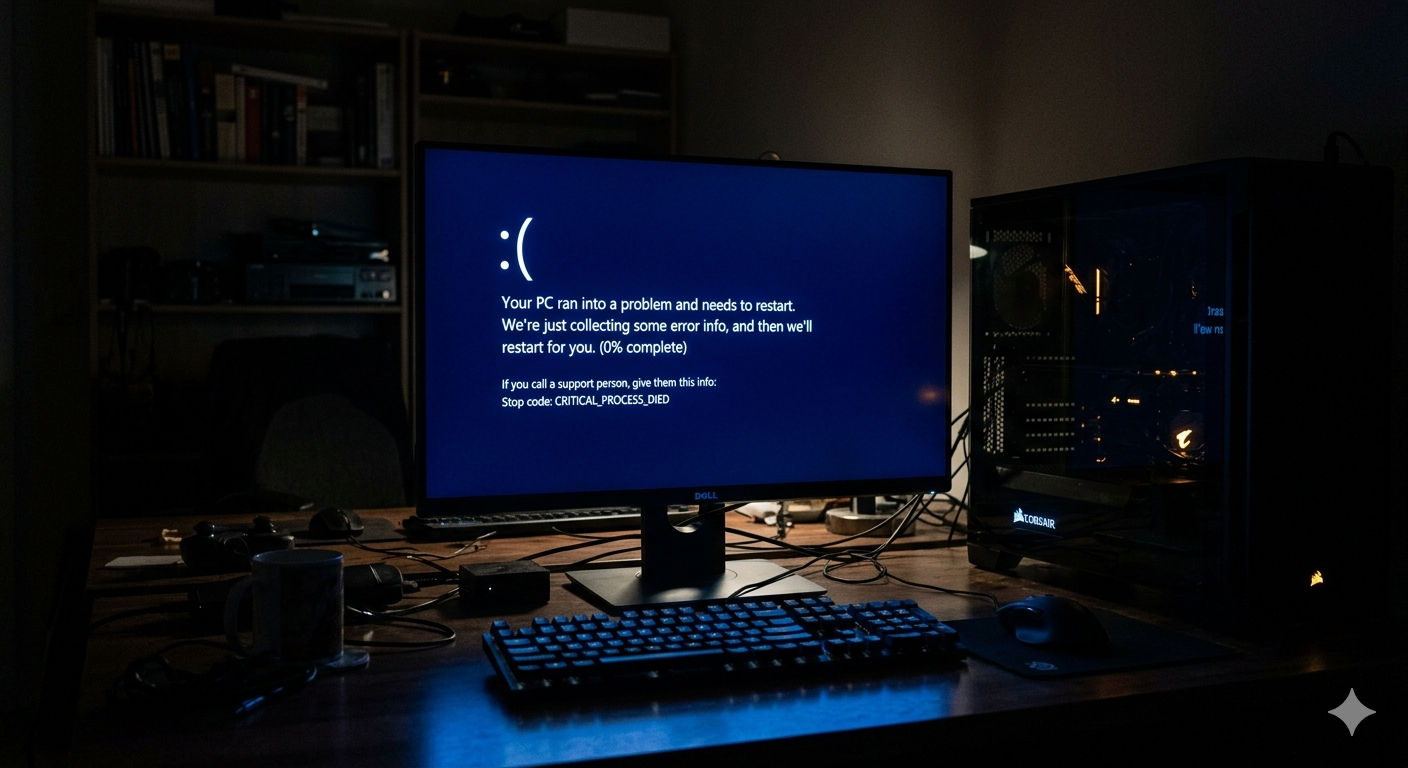
The Blue Screen of Death (BSOD) is one of the most terrifying experiences a Windows user can face. One second your PC is fine, the next second it goes dark and you're staring at a blue screen with a cryptic error code like CRITICAL_PROCESS_DIED, MEMORY_MANAGEMENT, or IRQL_NOT_LESS_OR_EQUAL.
This guide covers everything you need to know to identify the root cause and permanently fix it.
What Actually Causes a Blue Screen of Death?
A BSOD is not random. Windows triggers it when the kernel detects a fatal error that could corrupt your data or make the system unstable. Common causes include:
- Faulty RAM or memory errors
- Driver conflicts or corrupt drivers (especially after a Windows Update)
- Overheating CPU or GPU
- Failing hard drive (HDD/SSD)
- Corrupt system files
- Malware infections at the kernel level
- Incompatible third-party software
Step 1: Read the BSOD Error Code
Every BSOD shows a stop code at the bottom of the screen. This code is your single most important clue. Common stop codes and their meanings:
| Stop Code | Likely Cause |
|---|---|
| CRITICAL_PROCESS_DIED | Core Windows process was killed |
| MEMORY_MANAGEMENT | RAM hardware or driver issue |
| IRQL_NOT_LESS_OR_EQUAL | Faulty driver accessing wrong memory |
| SYSTEM_THREAD_EXCEPTION_NOT_HANDLED | Driver crash |
| KERNEL_SECURITY_CHECK_FAILURE | Corrupt kernel data or RAM |
| PAGE_FAULT_IN_NONPAGED_AREA | RAM or storage failure |
Step 2: Check the Minidump File
When a BSOD occurs, Windows writes a crash dump file. You can read it to find the exact driver or module that caused the crash.
- Press Win + R, type
%SystemRoot%Minidumpand press Enter - You will see .dmp files with timestamps
- Use WinDbg (free from Microsoft) to analyze them, or look up the specific filename online
Step 3: Update or Roll Back Drivers
Driver issues are responsible for over 60% of all BSODs. Here is how to fix them:
Roll Back a Recent Driver Update
- Press Win + X → Device Manager
- Right-click the suspected device (usually Display Adapter or Network Adapter)
- Click Properties → Driver tab → Roll Back Driver
Update All Drivers
- Press Win + X → Device Manager
- Right-click each device → Update Driver → Search automatically
Step 4: Run Windows Memory Diagnostic
Faulty RAM causes many BSODs.
- Press Win + R, type
mdsched.exeand press Enter - Click Restart now and check for problems
- Windows will restart and scan your RAM — this takes 10-15 minutes
- After restart, check the results in Event Viewer under Windows Logs → System
Step 5: Check Your Hard Drive / SSD Health
A failing drive causes BSODs like PAGE_FAULT_IN_NONPAGED_AREA.
- Open Command Prompt as Administrator
- Type:
chkdsk C: /f /r /xand press Enter - Press Y when asked to schedule a scan on next restart
- Restart your PC — the scan runs before Windows loads
Step 6: Scan for Corrupt System Files
Windows has a built-in tool to fix corrupted system files:
sfc /scannow
Run this command in an Administrator Command Prompt. It will scan and automatically repair any corrupt system files. This process takes 5-15 minutes.
After SFC completes, also run:
DISM /Online /Cleanup-Image /RestoreHealth
Step 7: Check for Overheating
An overheating CPU or GPU causes unexpected shutdowns and BSODs.
- Download HWMonitor (free) to check temperatures
- CPU should stay below 85°C under load
- GPU should stay below 90°C under load
- If temperatures are high: clean dust from fans, reapply thermal paste
Step 8: Boot into Safe Mode and Uninstall Recent Software
If the BSOD started after installing new software:
- Hold Shift and click Restart from the Start Menu
- Go to Troubleshoot → Advanced Options → Startup Settings
- Press F4 to boot into Safe Mode
- Uninstall recently installed applications from Settings → Apps
When to Reinstall Windows
If none of the above steps fix your BSOD, a clean Windows reinstall may be necessary. However, before doing this:
- Back up all your files to an external drive
- Use Windows Reset (Settings → System → Recovery → Reset this PC → Keep my files) — this is safer than a full reinstall
The Smarter Alternative: Let AI Diagnose It For You
The steps above are effective but time-consuming and technical. Every BSOD has a unique root cause that depends on your exact hardware configuration, installed drivers, and system history.
FixPilot changes everything. When a BSOD occurs or you are experiencing crashes:
- Press Ctrl+Shift+X from anywhere
- FixPilot's Vision AI analyzes your screen, event logs, and system state
- It pinpoints the exact cause — whether it's a specific driver file, a RAM slot, or a corrupted service
- It overlays a step-by-step fix guide directly on your desktop
No guessing, no multiple forum tabs, no risky commands you don't understand.
Conclusion
Blue Screen of Death errors are fixable. The key is identifying the correct stop code and following the right fix for your specific hardware and software configuration. Work through these steps systematically and your system stability will be restored.
For an even faster and more accurate diagnosis, try FixPilot — the AI-powered agent that sees your screen and gives you a precise, verified fix in seconds.
Tired of dealing with this issue?
Stop wasting your cognitive energy Googling and trying unreliable hacks. FixPilot is the ultimate solution—diagnosing and fixing your Windows PC errors in real-time with Vision AI.
Verified Safe Setup • 84MB Installer • Windows 10/11