"Application Not Responding" on Windows — Why It Happens and 6 Fixes
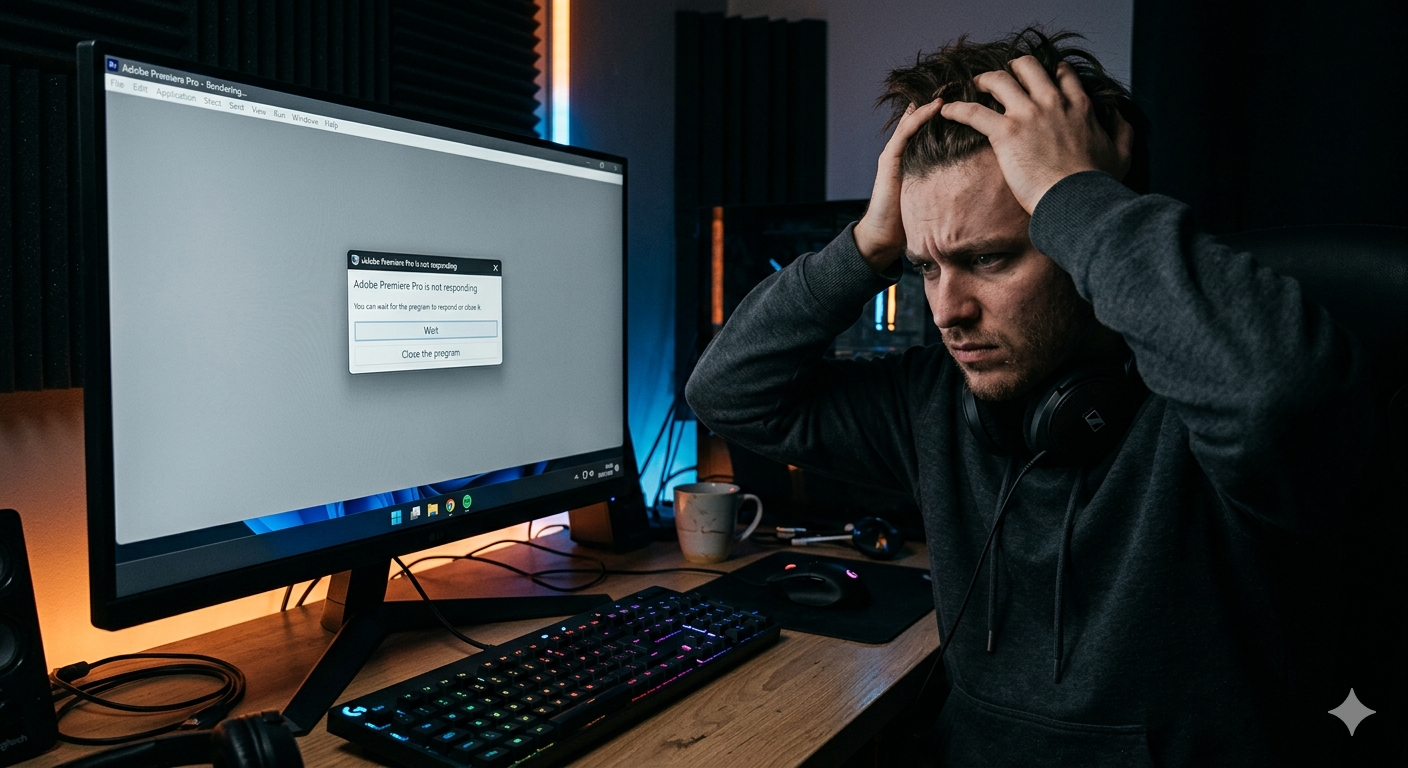
The application title bar turns grey and shows (Not Responding). You click everywhere but nothing works. Eventually Windows asks if you want to "Wait" or "End Task." This is one of the most universally hated Windows experiences — and it happens for specific, fixable reasons.
Why Do Applications Stop Responding?
An application shows "Not Responding" when its main thread is blocked — it cannot process any input events (mouse clicks, keyboard presses) because it is stuck waiting for something:
- Waiting for a slow disk — the app is reading or writing a file and the disk is busy
- Waiting for a network response — a request to a server that never arrived
- Out of RAM — Windows is paging memory to disk, stalling the app
- CPU competition — another process is consuming so much CPU the app can't get its share
- Deadlock — a code bug where two parts of the app are waiting for each other forever
- Third-party plugin or extension — a buggy plugin inside the app (like a browser extension) blocking the main thread
Immediate Response: Wait vs. End Task
When you see "(Not Responding)":
Wait — if the application is doing something legitimate (a big file import, a complex calculation), give it up to 2-3 minutes. Many apps become responsive again once the background operation completes.
End Task — if it's been more than 2-3 minutes with no disk/CPU activity visible in Task Manager, the app is genuinely frozen. End Task and reopen it.
To End Task without the dialog:
- Press Ctrl+Alt+Del → Task Manager
- Find the frozen application → right-click → End Task
Fix 1: Address the Root Cause — Free Up RAM
Low RAM is the single most common cause of persistent "Not Responding" across all applications.
Immediately:
- Open Task Manager → Performance tab → check RAM usage
- If above 85% used, you are in constant memory pressure
- In the Processes tab, identify which other apps are using the most RAM and close them
Permanently:
- Close browser tabs you are not using (each Chrome/Edge tab uses 100-500MB)
- Disable startup programs that consume RAM (Task Manager → Startup tab)
- For developers: if you run Docker, VMs, or local servers — these consume massive RAM in background
Fix 2: Repair or Reinstall the Application
If only one specific app keeps freezing:
- Settings → Apps → Installed Apps
- Find the app → click three dots → Modify (if available) → choose Repair
- If Repair is not available: Uninstall → download fresh from official source → reinstall
For Microsoft Store apps:
- Settings → Apps → find the app → Advanced options
- Click Repair first, then Reset if repair doesn't work
For Office applications (Word, Excel, Outlook):
- Control Panel → Programs → Microsoft Office
- Click Change → Quick Repair → then Online Repair if Quick Repair fails
Fix 3: Update the Application
Older versions of applications often have bugs that cause freezing on newer Windows versions. Always ensure:
- The application is updated to the latest version
- Check the app's built-in update mechanism (Help → Check for Updates in most apps)
- For games: verify your game client (Steam, Epic) is also up to date
Fix 4: Run the Application as Administrator
Some applications need elevated permissions to access certain files or registry keys. Without them, they stall waiting for access.
- Right-click the application shortcut → Run as administrator
- If this resolves the freezing: right-click the shortcut → Properties → Advanced → check Run as administrator to make it permanent
Fix 5: Disable or Remove Conflicting Extensions/Plugins
Browser "Not Responding" is almost always caused by extensions:
- Open Edge or Chrome menu → Extensions → Manage Extensions
- Disable ALL extensions
- Test if the browser freezes — if not, re-enable one by one to find the culprit
- Remove the problematic extension
For Office applications:
- Hold Ctrl while opening Word/Excel to start in Safe Mode (no add-ins)
- If it doesn't freeze in Safe Mode: File → Options → Add-ins → disable all COM Add-ins
Fix 6: Adjust the Application's Priority
If an important application is freezing because other processes steal CPU cycles:
- Open Task Manager → Details tab
- Right-click the application's process (.exe) → Set priority → Above Normal (not High or Realtime — those can destabilize Windows)
You can also lower the priority of background apps (like browser sync services) that compete with your foreground app.
Fix: Windows Explorer / File Explorer "Not Responding"
If File Explorer itself freezes:
- Task Manager → Details → right-click explorer.exe → End task
- File → Run new task → type
explorer.exe→ Enter - File Explorer restarts fresh
For persistent Explorer freezing:
- Folder Options → View → disable Launch folder windows in a separate process
- Alternatively, enable it (try both states as results vary by system)
Fix: Outlook Not Responding
Outlook freezes specifically for:
- Large OST/PST file — if your Outlook data file is over 20GB, compact it: File → Account Settings → Data Files → select your .ost → Settings → Compact Now
- Antivirus scanning email — exclude Outlook data file location from real-time AV scanning
- Corrupt profile — create a new Outlook profile: Control Panel → Mail → Show Profiles → Add
The Faster Way: AI Diagnosis
When an application freezes, the reason why it froze on your specific system — your RAM amount, your drive speed, your background processes — matters. Generic fixes don't always hit the mark.
FixPilot reads your running processes, RAM state, and disk activity in real time. Press Ctrl+Shift+X when you notice an app freezing frequently, and the Vision AI identifies the exact resource bottleneck or conflict causing it — and gives you the specific resolution for your system.
Conclusion
"Not Responding" is a symptom, not a fixed problem. The cause could be RAM pressure, a buggy extension, a corrupt installation, or simple CPU competition. Start by freeing RAM and checking if only one app freezes (suggesting an app-specific issue). If multiple apps freeze, it is a system-wide resource problem.
For a precise diagnosis of what is causing your specific applications to freeze, FixPilot's AI agent analyzes your exact system state and gives you the targeted fix.
Tired of dealing with this issue?
Stop wasting your cognitive energy Googling and trying unreliable hacks. FixPilot is the ultimate solution—diagnosing and fixing your Windows PC errors in real-time with Vision AI.
Verified Safe Setup • 84MB Installer • Windows 10/11